

Google Meet and Zoom are two of the most popular web meeting applications on the market. Many business people use both apps during the course of the day.
Zoom is available to anyone with an email address. Google Meet is available to Google Workspace subscribers (various plans) and anyone with a Google Account, including free consumer Gmail users.
The following is a comparison of Google Meet and Zoom. If your other option is Microsoft rather than Zoom, read our Google Meet vs. Microsoft Teams comparison.
| Feature | Google Meet | Zoom |
|---|---|---|
| Free plan | Up to 100 participants; group meetings up to 60 minutes on a computer (one-on-ones up to 24 hours) | Up to 100 participants; meetings up to 40 minutes |
| Paid participant cap | 100 to 1,000, depending on Workspace edition | 100 by default on all plans, up to 1,000 with the Large Meetings add-on |
| Recording and transcripts | On premium plans | Local recording on the free plan; cloud recording and transcripts on Pro and up |
| Breakout rooms, polls, Q&A | On premium plans | Breakout rooms on all plans; polling on Pro and up |
| AI notes and summaries | Gemini “Take notes for me” on eligible plans | AI Companion: 3 meeting summaries a month free; unlimited on Pro and up |
| Encryption | Encrypted in transit by default; optional client-side encryption | End-to-end encryption available on all plans |
Sources: Google Meet, Meet participant and length limits, Zoom pricing.
Pricing
Google Meet
For business users, Meet is included in the price of Google Workspace. Google Workspace has four tiers of pricing: Business Starter, Business Standard, Business Plus, and Enterprise (Google Workspace pricing).
Meet is also included in Google Workspace Essentials. Workspace Essentials is designed for organizations that are already using a product such as Microsoft Office 365 for email and calendaring.
The free consumer version of Meet allows up to 100 participants. On a computer, group meetings of three or more people end at 60 minutes, while one-on-one meetings can run up to 24 hours (Google Meet Help).
For meetings hosted with the consumer version of Google Meet, attendees need to sign in with a Google account or be approved by the organizer (Google). For attendees who don’t have or want a Gmail address, it is possible to create a Google account without Gmail.
Here are the differences between the consumer and business versions of Google Meet.
Zoom
Zoom has a freemium pricing model. The free Basic plan caps meetings at 40 minutes and 100 participants.
For meetings longer than 40 minutes, the Pro version or higher is required. Pro costs $16.99 per user per month billed monthly, or $14.16 per user per month billed annually, and allows meetings of up to 30 hours.
How each app runs
Google Meet
Google Meet does not have a locally installed desktop application—it only runs from a browser tab.
As such, Meet does not have control over Windows, macOS, or Linux operating systems. The user experience on a Chromebook is the same as on a Windows computer, a Mac, or a Linux computer. There is, however, an installed app for iOS and Android.
A meeting can be launched from Google Calendar, Gmail, or a browser tab. The URL for the latter is https://meet.google.com.
Zoom
Zoom can be run from a browser tab. However, most users have the downloadable Zoom Workplace app installed locally.
The local app gives Zoom control over the host and participant computers. There are noise-canceling options that rely on local control.
Attendee view
Zoom
One of the most popular interface features of Zoom is Gallery View, a.k.a. Brady Bunch view. This view displays up to 25 participants per screen by default. There’s an option to display up to 49 participants per screen, depending on the computer’s CPU (Zoom Support).
Google Meet
Meet’s default “Auto (dynamic)” layout adapts to the window size and number of participants. Its “Tiled (legacy)” layout shows 16 tiles by default and up to 49 people at once when no one is presenting.
Meet also lets you pair your video tile with another participant so both tiles appear side by side, which is useful for someone who is Deaf or hard of hearing and is working with a sign language interpreter. Tile pairing is now coming to the Meet mobile apps: Android starting October 12, 2026, and iOS starting November 2, 2026.
Audio options
Zoom
Zoom has a number of audio options, including the ability to test both the microphone and speaker.
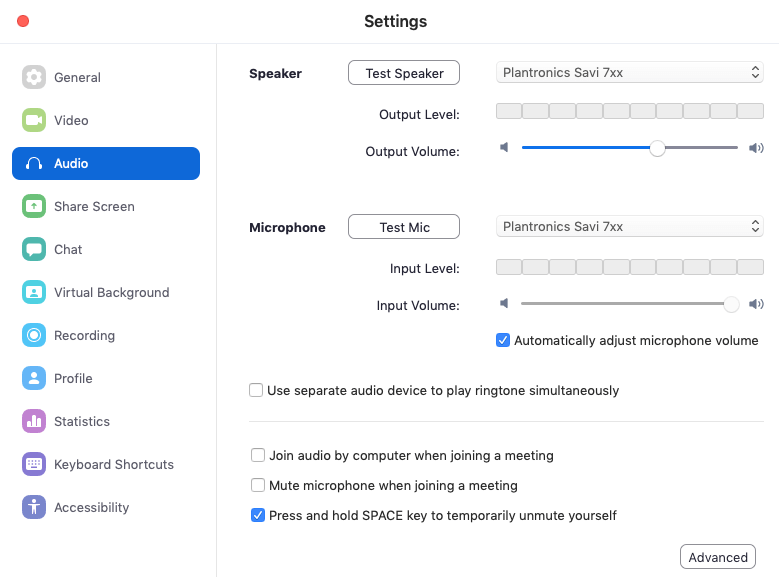
Advanced audio options allow for suppressing background noise, such as an air conditioner. Intermittent background noises, such as chair movement and keyboard sounds can also be suppressed.
Google Meet
In contrast to Zoom, Google Meet’s audio options are basic. There is an option to test the selected speakers and microphone. Google notes that using mismatched microphone and external speaker devices might cause an echo.
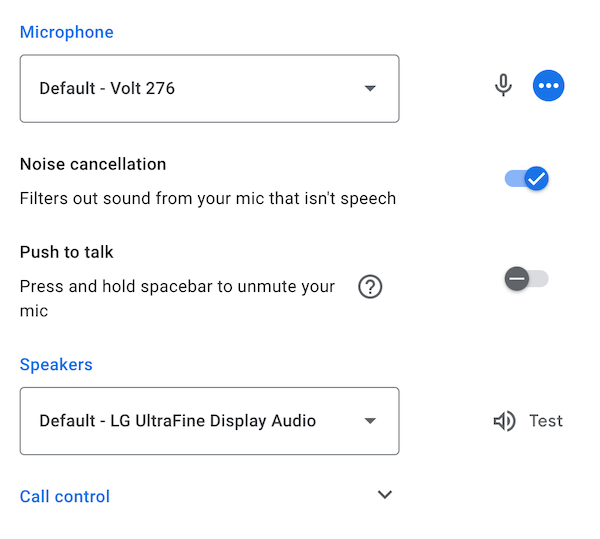
Cloud-based noise cancellation is not available on the entry-level Google Workspace Business Starter edition. Device-based noise cancellation works for all users on most Android phones.
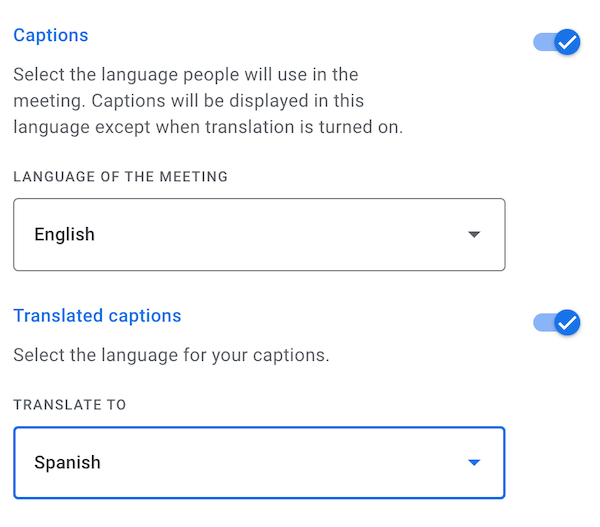
Meet has on-the-fly close captioning. There’s an option for near real-time voice-to-text of participants’ words, along with translation options.
Video options
Zoom
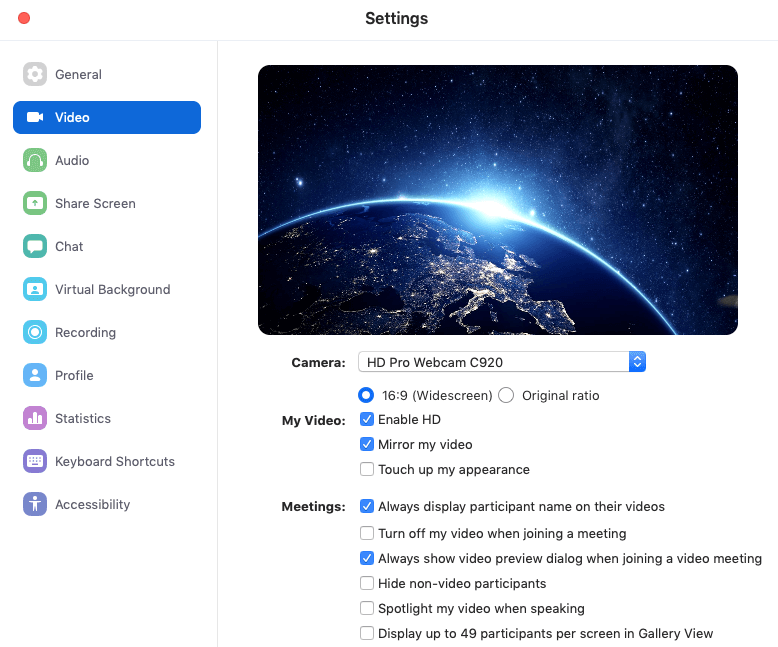
Among Zoom’s video options is an “Original ratio” setting that keeps the camera’s original aspect ratio. Also, a user can decide whether or not to view a mirror image of themselves and their background; mirroring only affects their own preview (Zoom Support).
A popular feature of Zoom is Virtual Background, which lets a host or participant use an image or video file as a backdrop. This effect can be enhanced with a green screen.
A green screen gives the sharpest effect and uses fewer system resources. Using a background without a green screen, or using a video as the background, has higher hardware requirements (Zoom Support).
Google Meet
As is the case with audio, Meet’s video options are straightforward.
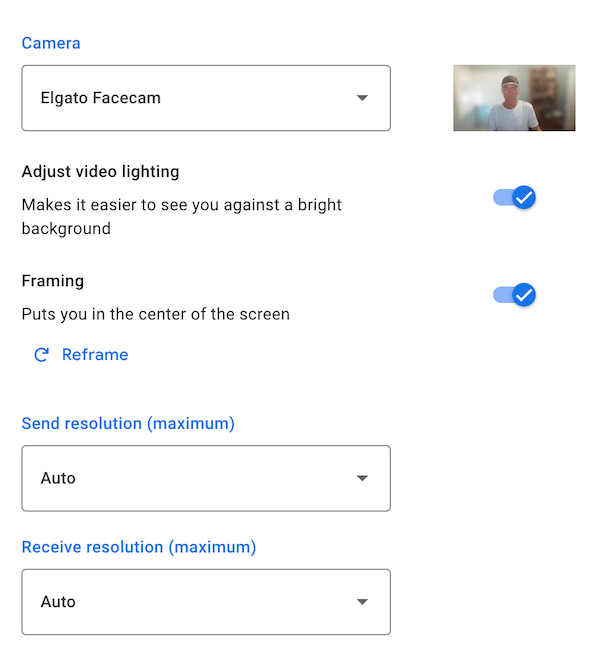
Since the original release of Meet, Google added the ability to replace the background with an image.
Whichever App You Pick, Upgrade the Camera
Meet and Zoom can only work with the picture your camera gives them. Built-in laptop webcams often look grainy in normal office light. The Logitech C920x is a long-running favorite: 1080p video, two built-in mics, and a clip that fits most monitors.
As an Amazon Associate, Lexnet earns from qualifying purchases.
Desktop sharing
Both Zoom and Meet allow for sharing either a single application or sharing the entire desktop. A browser counts as an application. When a browser like Chrome or Firefox is shared, all tabs are visible. Here are a couple of differences on the topic of desktop sharing:
Zoom
Zoom allows for sharing computer sound and content from a second camera. If the host shares a video clip, Zoom gives the option to optimize the clip for sharing. A shared screen can be annotated with a number of different tools.

Google Meet
Google Meet lets users present a specific browser tab, a window, or the entire screen. Meet now also has annotation tools for presenters.
This feature allows video content along with the audio to be seen and heard by all participants.
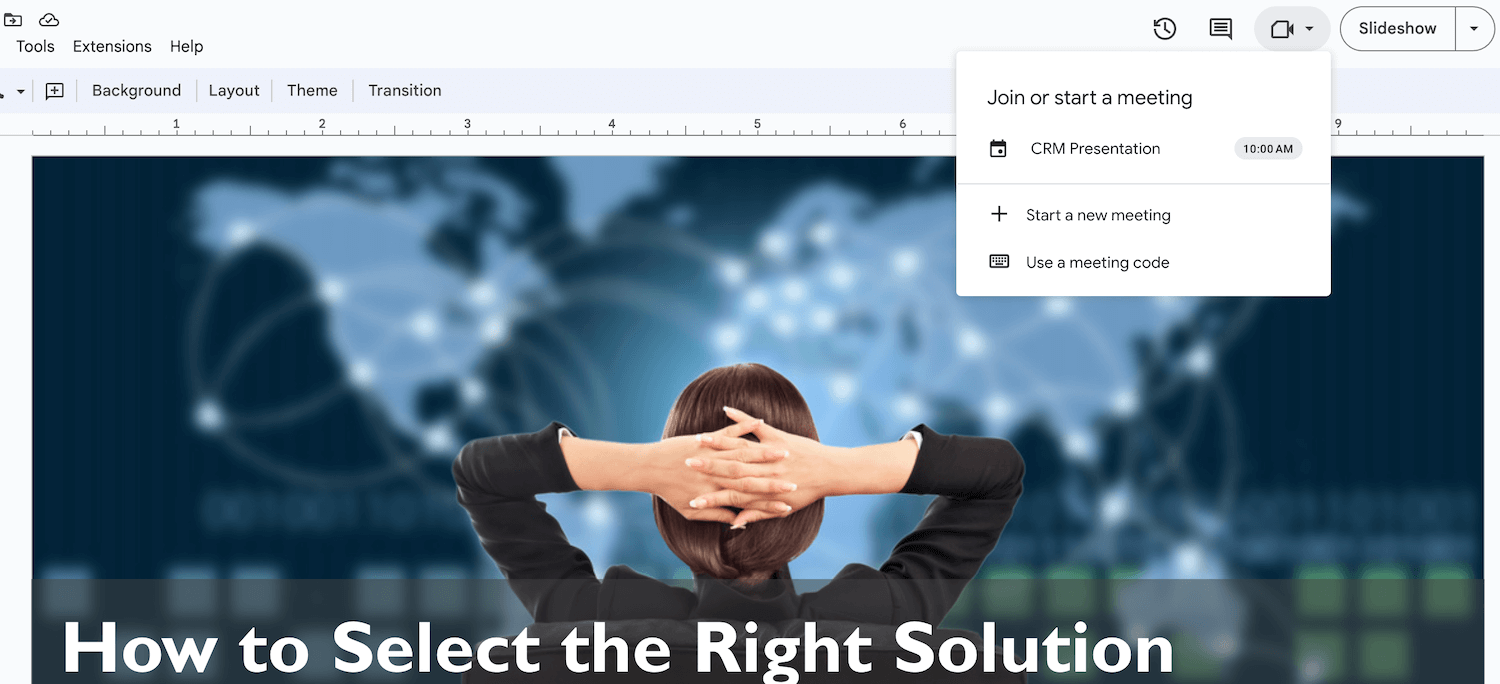
Google Workspace users can join a meeting from within a Doc, Sheet, or Slides presentation by clicking Meet at the top right, then present that tab to the call.
Participant muting
Zoom
Zoom gives a host or co-host the ability to mute all participants from the Participants panel. When all participants are muted, there is an option to specify whether users can unmute themselves or not.
Google Meet
Meet now lets meeting creators and calendar event owners mute all participants when Host Management is turned on. Hosts and co-hosts can also use Audio Lock to keep participants muted until the lock is turned off.
Integrations
Zoom
Zoom lists a wide variety of integrations and connectors in its app marketplace.
Google Meet
Meet has integration touchpoints with Google Calendar, Gmail, Docs, Slides, Sheets, and Chrome. Since Meet runs in the browser on computers, third parties like the publisher of Meet Enhancement Suite can develop add-on functionality in the form of a Chrome extension.
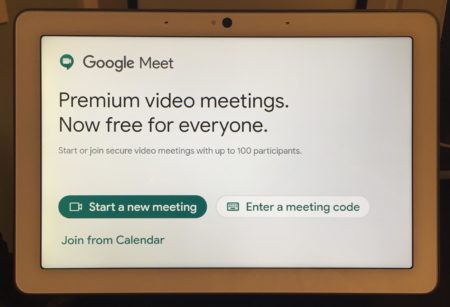
Consumer Google Meet works with the Google product, Nest Hub Max, for Meet calls. Joining scheduled Meet meetings from Nest displays is no longer supported.
AI features
Gemini in Meet
- “Take notes for me” saves organized notes to Google Docs and emails the organizer a recap
- “Summary so far” helps late joiners catch up
- Requires an eligible Workspace edition or Google AI plan
Zoom AI Companion
- Free Basic plan: AI summaries for 3 meetings a month
- Pro and up: unlimited meeting summaries
Google Meet vs Zoom: Security & Privacy
Zoom
In 2020, Zoom was the subject of criticism for the app’s security holes and the company’s privacy policies. Zoom responded with a 90-day security plan and, in October 2020, began rolling out end-to-end encryption to free and paid users. Today, Zoom has a broad set of security features, and end-to-end encryption for meetings is available on all plans, including the free plan (Zoom pricing).
Google Meet
Google Meet encrypts all meeting data in transit by default. Client-side encryption, which encrypts meeting media in the browser with the organization’s own keys, adds another layer. Meet also has a number of other security and privacy features. According to Google, the fact that Meet runs entirely in the browser, “limits the attack surface for Meet and the need to push out frequent security patches on end-user machines.”
Frequently Asked Questions
Google Meet is included in the price of Google Workspace. Google Meet is also included with free consumer Gmail accounts.
You do not need a Google account to join a Google Meet meeting that is hosted by a Google Workspace user. For a meeting hosted by a consumer Gmail user, you need to sign in with a Google account or be approved by the organizer.
To start a meeting, go to https://meet.google.com. Click on “Join or start a meeting.” Enter a meeting name and then share the link. Click the ‘Continue’ button and then click the ‘Join now’ button to start the meeting. Once you’ve started the meeting, you can copy the joining information and share it.