

Google Sheets is Google’s free, cloud-based spreadsheet application. It runs entirely in a web browser, stores files on Google Drive, saves every change automatically, and lets several people edit the same spreadsheet at the same time. It comes with a personal Gmail account and with Google Workspace for business.
This guide explains how Google Sheets works in practice: where your files actually live, what it can calculate, how sharing and collaboration work, what the new AI features do, and how it compares to Microsoft Excel.
What Is Google Sheets?
Google Sheets is a cloud-based spreadsheet application. No desktop software is needed to create or edit spreadsheets — you open a browser tab and start working. Files are stored on Google Drive rather than on your hard drive.
Sheets has most of the functionality of a traditional “rows and columns” desktop spreadsheet: cells, formulas, formatting, charts, and pivot tables. It can be used for everything from basic calculations to sophisticated data analysis.
Being cloud-based adds capabilities that desktop spreadsheets don’t have natively, including real-time sharing, multi-user collaboration, data exchange with other applications, and publishing live data visualizations to other Google apps and to websites.
How Google Sheets Works, Step by Step
Here’s the basic lifecycle of a spreadsheet in Google Sheets:
- You create a file in the browser. Go to sheets.google.com, or type sheets.new in the address bar, and a blank spreadsheet opens. Nothing is installed.
- The file is stored on Google Drive. Every spreadsheet lives in your Drive, not on your computer, which is what makes it reachable from any device you sign in from.
- Every change saves automatically. There is no Save button. Edits are written to the cloud as you type, and the full edit history is kept.
- You enter data and formulas. Formulas start with an equals sign and can reference cells, ranges, other tabs, and even other spreadsheets.
- You share the file instead of emailing it. Recipients get a link and open the same live copy, with Viewer, Commenter, or Editor access.
- You can roll back anything. Version history under File > Version history lets you see who changed what and restore an earlier state.
Is Google Sheets Free?
Yes. Google Sheets is free with a personal Google account, and storage is shared across Drive, Gmail, and Google Photos on the free tier.
Paid Google Workspace plans add business features on top of the same application: a custom email domain, far more storage, admin controls, advanced sharing and security policies, and — on eligible plans — the Gemini AI features described below.
Templates
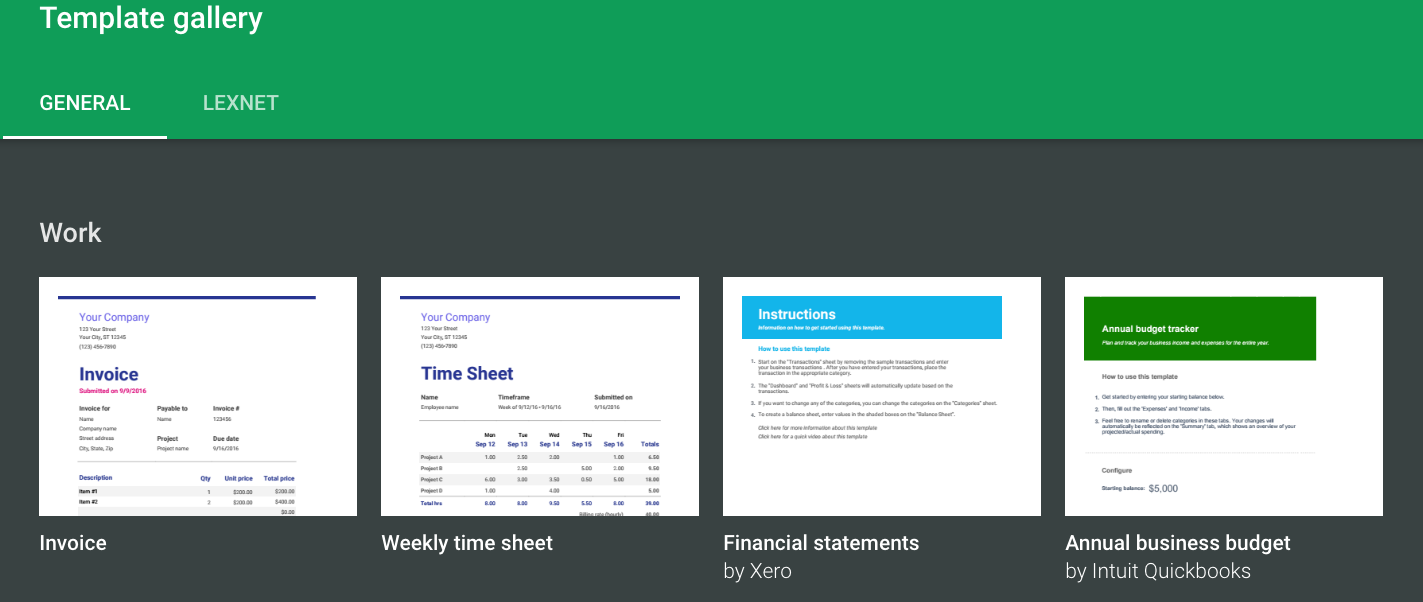
Several business and personal templates in Google Sheets provide a few examples of how Sheets can be used.
A sole proprietor could use a template created by accounting vendor Xero to track and report on revenue and expenses.
You can view a copy of this template even if you don’t have a Google account (we’ve shared one publicly).
Functions and Formulas
Google Sheets includes over 500 functions. A simple and commonly used one is SUM, which returns the sum of a series of numbers and/or cells.
At the other end of the spectrum, GAMMA.DIST is a function only a statistician could love. It calculates the gamma distribution, a two-parameter continuous probability distribution.
Functions are arranged in the following categories:
- Array
- Database
- Date
- Engineering
- Filter
- Financial
- Info
- Logical
- Lookup
- Math
- Operator
- Parser
- Statistical
- Text
There’s something for everyone, whether a user is in engineering, finance, marketing, sales, operations, or management.
You no longer have to memorize syntax, either. Large language models like Google’s Gemini, Claude, and ChatGPT will write a working formula from a plain-English description of what you want to calculate.
The AI Function and Gemini in Google Sheets
Google has built its Gemini AI model directly into Sheets in two different places, and the distinction matters.
The Gemini side panel is a conversational assistant, opened with the “Ask Gemini” button in the top right corner. It answers questions about your data, builds charts, creates dropdowns, applies conditional formatting, and generates pivot tables — but it works outside the grid, and its output has to be moved into your cells.
The AI function works inside the grid, like any other formula. You type =AI("your prompt", A2) — or =GEMINI(), which does the same thing — and the model writes text output straight into the cell. Because it’s a formula, you can fill it down an entire column.
Typical uses include categorizing rows, running sentiment analysis on customer feedback, summarizing long text fields, extracting structured values out of messy notes, and drafting personalized copy from a few data points. For example:
=AI("Categorize this expense as Travel, Software, or Marketing", B2)=AI("Classify this review as positive, negative, or neutral", C2)=AI("Summarize the key themes in this feedback", B2:B50)
Two caveats. The AI function requires an eligible Google Workspace plan that includes Gemini, or a consumer Google AI subscription — it isn’t part of the free tier. And it returns text only, not images or charts, so it complements the built-in functions rather than replacing them.
Tables
Tables are a newer addition that turn a plain range into a structured object. Converting a range to a table applies consistent formatting and adds column types, dropdown menus, filters, color coding, and a controls header for table-level actions.
Tables also connect to conditional notifications: rules that email you when specific criteria are met, such as a status changing or a new row being added. Rules recognize table column names, and a spreadsheet can hold up to 20 of them. For anyone using a Sheet as a lightweight tracker or intake log, this removes the need for an Apps Script trigger.
Pivot Tables and Charts
Pivot tables can be used to summarize data that has repeating parameters.
For the function categories listed above, we did the following:
- Copied the list of functions from the table on the Google page
- Pasted them into a Google Sheet (view the sheet in a new tab)
- Pivoted on the function name
- Created a pivot chart
- Published and embedded the “live” chart below
The chart below is not a screenshot. It’s the live chart from that spreadsheet, embedded in this page — a good illustration of what “cloud-based” actually buys you.
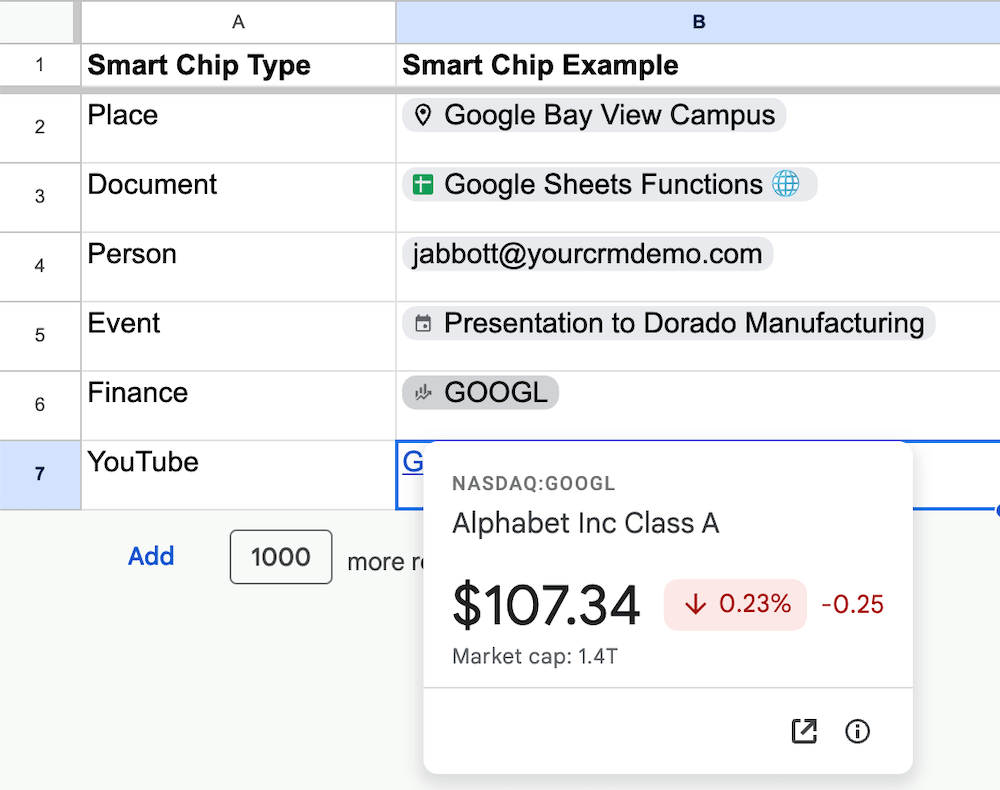
Smart Chips
Different from text links, Smart Chips stand out visually on a Sheet and display a preview card on hover. Insert one by typing @ in a cell. Available chip types include:
- Place
- Document
- Person
- Event
- Finance
- YouTube
- Rating
Smart Chips can also be set as a table column type, so an entire column can be typed as people or places rather than free text.
Filtering, Filter Views, and Slicers
Google Sheets has multiple filtering options, and choosing the right one mostly depends on whether other people are looking at the file at the same time.
- Basic filters change the view for everyone in the spreadsheet.
- Filter views (Data > Filter views) are private to you, so you can sort and filter without disrupting collaborators.
- Slicers (Data > Add a slicer) sit on top of the sheet as clickable controls. Slicers are an easy way to view subsets of ranges or pivot tables, and they’re the best option for a dashboard other people will use.
Google Sheets Add-ons and Integrations
There are many add-ons for Google Sheets, some of which pull in data from other sources such as Google Search Console and CRM systems.
- There’s a Google Sheets add-on for Salesforce from Google Cloud called Salesforce Connector for Sheets.
- The free Search Analytics for Sheets version lets you pull in up to 25,000 rows from Google Search Console.
- Using Zapier, Google Sheets can integrate with thousands of different cloud applications.
- Connected Sheets goes a step further by querying BigQuery directly, so you can analyze billions of rows while only pulling summaries into the spreadsheet.
- Apps Script is the built-in JavaScript environment for custom functions, menus, and scheduled automations when no add-on fits.
Collaboration and Sharing
As with Google Docs, Google Sheets can be selectively shared with anyone inside or outside an organization. Once a spreadsheet is shared, several collaboration options open up:
- Per-person access levels: Viewer, Commenter, or Editor
- Real-time co-editing, with each person’s cursor visible
- Cell comments with @-mentions that email the person tagged
- Protected sheets and ranges, so specific cells can only be edited by named people
- Full version history showing who changed what, and when
- Link sharing with expiration dates and download restrictions on Workspace plans
A Google Sheets file can be downloaded in a variety of formats, including:
- Microsoft Excel (.xlsx)
- OpenDocument format (.ods)
- PDF (.pdf)
- Comma-separated values (.csv)
- Tab-separated values (.tsv)
Google Sheets cell ranges and charts can also be embedded in Google Docs, Google Slides, and Google Sites, and linked charts update when the source data changes.
Working Offline and on Mobile
Cloud-based doesn’t have to mean connection-dependent. With the Google Docs Offline extension in Chrome, you can enable offline access for a spreadsheet and keep editing on a plane or a bad hotel connection. Changes sync the next time you’re online.
The Google Sheets mobile apps for Android and iOS handle viewing, light editing, and data entry well. Complex work — pivot tables, long formulas, chart configuration — is still much easier on a desktop browser.
Google Sheets vs. Excel
The two applications have converged considerably — Excel now has a solid web version and co-authoring — but they still have different strengths.
| Feature | Google Sheets | Microsoft Excel |
|---|---|---|
| Cost | Free with a Google account | Paid, with a limited free web version |
| Where it runs | Browser first | Desktop first, plus a web version |
| Real-time collaboration | Excellent, built in from the start | Good, best on Microsoft 365 |
| Maximum size | 10 million cells per file | 1,048,576 rows per sheet |
| Large-dataset performance | Slows well before the cell limit | Handles big files better |
| Advanced analysis | Solid; BigQuery via Connected Sheets | Deeper: Power Query, Power Pivot, VBA |
| Automation language | Apps Script (JavaScript) | VBA and Office Scripts |
| In-cell AI | =AI() function on eligible plans | Copilot sidebar, no cell-level function |
The short version: choose Sheets when multiple people need to work in the same file and the data is small to medium. Choose Excel for heavy modeling, very large datasets, or when your organization already runs on Microsoft 365.
Google Sheets Size Limits
Sheets is generous but not unlimited, and the limits are worth knowing before you import a large export:
- 10 million cells per spreadsheet, counted across every tab — including empty ones
- 18,278 columns maximum, ending at column ZZZ
- No fixed row limit — rows are capped only by the cell total, so 26 columns works out to roughly 384,000 rows
- 50,000 characters per cell
In practice, performance degrades long before the hard ceiling. Most people notice slowdowns somewhere in the 50,000 to 100,000 row range, particularly with heavy formulas. At that point the answer is usually Connected Sheets, splitting the file, or moving to a database.
Frequently Asked Questions About Google Sheets
What is Google Sheets used for?
Common uses include budgeting and expense tracking, invoicing, project and task tracking, inventory lists, marketing and sales reporting, survey and form response collection, and shared dashboards. Because it’s collaborative by default, it’s frequently used as a lightweight database for small teams.
Do I need a Google account to use Google Sheets?
You need one to create or edit a spreadsheet. You do not need one to view a spreadsheet that has been shared publicly or via link.
Can Google Sheets open Excel files?
Yes. You can upload an .xlsx file to Drive and open it directly in Sheets, either keeping it in Excel format or converting it. Most formulas and formatting carry over, though macros, some advanced charts, and certain Excel-only functions may not.
Does Google Sheets work offline?
Yes, with the Google Docs Offline Chrome extension enabled and offline access turned on for the file. Edits sync automatically once you reconnect.
Is Google Sheets secure enough for business data?
Data is encrypted in transit and at rest. Google Workspace plans add administrative controls including two-step verification enforcement, data loss prevention, sharing restrictions, and audit logs. As with any cloud tool, the practical risk is usually misconfigured sharing rather than the platform itself, so review link-sharing settings on files that contain sensitive data.
How many people can edit a Google Sheet at once?
Up to 100 people can edit a spreadsheet simultaneously. More can view it, and a published or embedded sheet can be viewed by an unlimited audience.
The Bottom Line
Google Sheets works by moving the spreadsheet off your hard drive and into the browser. Everything that follows from that — automatic saving, real-time collaboration, live embedded charts, connections to other cloud applications, and now AI that runs inside the cells — is a consequence of the file living in the cloud rather than on a single machine.
For most small businesses and teams, it’s capable enough to be the primary spreadsheet, with Excel reserved for the heavy modeling work.