
Updated
Google first called these group conversations "Rooms," then renamed them "Spaces" in 2021. A lot has changed since then. Every space now uses inline threading, guests without a Google account can be invited, and Gemini can summarize a busy space for you. This guide covers how spaces work today and what a small business should know before rolling them out.
What is a space in Google Chat?
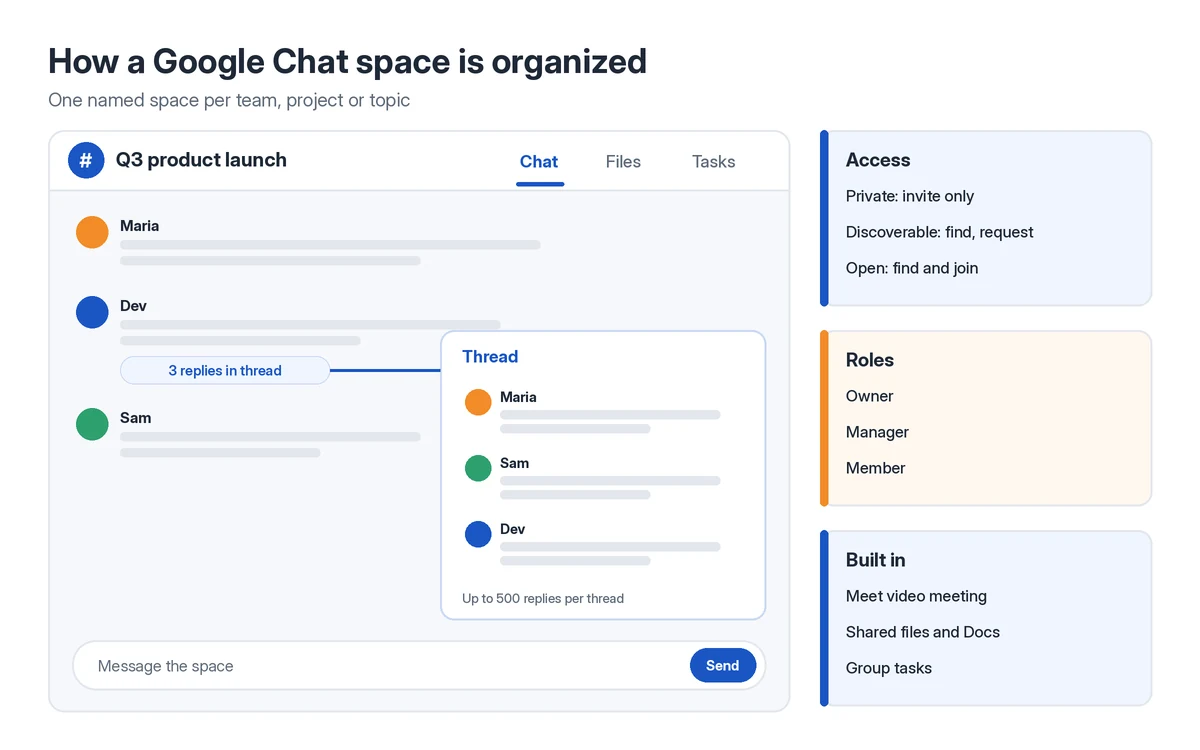
Google's help page on spaces calls a space a place to communicate with a group about a topic, project or shared interest. A space is different from a group direct message in a few practical ways:
- A space has a name and a description. A group DM just lists the people in it.
- A space has a Files tab that lists everything shared in it. A group DM has no file list.
- You can create and assign tasks in a space. Unnamed group conversations have no task features.
- By default, space members get notified only for conversations they're part of or when someone @mentions them. In a DM, every message triggers a notification.
- You can have two or more spaces with the same group of people, for example one per client project.
If a group DM keeps coming back to the same subject, Google lets you turn the group conversation into a space. After that it gets the Chat, Files and Tasks tabs.
Collaboration spaces and announcement spaces
When you create a space with a work account, you pick one of two types:
- Collaboration: everyone can post, react and reply. This is the default and the only type available to personal Google accounts.
- Announcements: only owners and managers post in the main conversation. Members can react and reply to announcements, and owners can turn replies off. You can't change the type after you create the space.
Who can find and join a space
In a work account, the space owner or manager sets the access level:
- Private: people can't find or join the space unless someone adds them.
- Discoverable: people in your organization can find the space and its description, and they can request to join if the space allows it.
- Open: people in your organization can find the space, preview its messages and join.
Spaces also have three roles: owner, manager and member. Owners and managers look after settings and membership, and members post and reply.
How to create and join a space
These steps are for a computer, from Google's create-a-space instructions. The Chat mobile app and the Chat tab in the Gmail app work the same way.
Open Chat
Go to Google Chat, or open Gmail and click Chat on the left.
Start a new space
Click New chat, then Create a space.
Name it
Enter a space name. If you want, click Choose an emoji to give it an avatar. Space names are visible to everyone in your domain who has Chat, so pick a name you're fine sharing.
Decide about outside people now
If clients or contractors will need access, select Allow people outside your organization to join before you click Create. You can't turn this on later.
Create and add members
Click Create, then add people by name, email address or Google Group. You can also type @ and a name in the reply area to add someone quickly.
To join a space someone else made, click New chat or Start a chat, then Browse spaces. Spaces you've been invited to appear at the top. You can preview a space before joining. In preview you can read messages but you can't post or get notifications.
Threaded vs. non-threaded replies
Older spaces came in two styles. Some grouped every message under a topic and others were one flat stream. Google made inline threading the default for new spaces in March 2023 and then upgraded the old topic-based spaces to the same model.
In an inline-threaded space, you choose how to answer each time:
- Reply in the main conversation when everyone should see it.
- Reply in a thread to keep a side discussion out of the main stream. Hover over a message and click Reply in the thread. According to Google's threading guide, a thread can hold up to 500 replies.
You can follow or unfollow a thread and choose how you're notified about it. Threads you follow show up under Threads in Chat's Home view. Since November 2025, inline threads also work in direct messages. Neither admins nor users can turn that off.
Guests and external spaces
Google's admin documentation on chatting with external users describes two kinds of outside participants:
- External users have a Google Account, such as a Workspace account, a Gmail address or a non-Gmail Google Account. Chat labels them yellow. If they're on Workspace, their own admin has to have Chat turned on.
- Guest accounts are for people without a Workspace account, such as someone on Hotmail or their company's own email. Chat labels them teal. Your organization controls guest accounts and any data they create.
A few limits are worth knowing before you invite a client:
- You decide whether a space is external when you create it. You can't change that later.
- External members can't add people, rename the space or add webhooks. They also can't add or use Chat apps in a space made by a work account.
- An external space can't also be discoverable or open to your whole organization.
- Removing someone from a space doesn't remove their access to Drive files or tasks that were shared with the space. Check file sharing separately.
Files, Docs, Meet and Tasks in a space
Spaces connect to the rest of Workspace:
- Files tab: add Drive files, PDFs, videos and files from your computer, then find them later in one list. You can jump from a file to the thread where it was shared. People who leave the space lose access to a Drive file unless it was shared with them some other way.
- Docs and Sheets: open a shared Doc or Sheet next to the conversation and edit it while you chat. You can also create a new Doc from the space.
- Meet: click Add video meeting in the reply area to post a Meet link, or type /calendar to create a meeting invite. Work accounts can also start a huddle. If you're weighing video tools, see our comparison of Google Meet and Microsoft Teams.
- Tasks: open the Tasks tab to create and assign tasks with a due date. An assigned task also shows up in that person's own Google Tasks list. Deleting a task deletes it for everyone.
- Apps: add Chat apps such as Polls or Drive, or third-party apps your admin allows.
Which Google Workspace plans include spaces?
Chat and spaces come with every Google Workspace plan. Personal Google accounts can use them too. The differences between plans show up in external spaces and Gemini. For current per-user prices, see our Google Workspace pricing guide.
| Feature | Personal Google account | Business Starter | Business Standard and Plus |
|---|---|---|---|
| Create spaces and threads | Yes (collaboration spaces) | Yes | Yes |
| Announcement spaces and access settings | No | Yes | Yes |
| Create external spaces | Not applicable | No, but users can join external spaces made by eligible organizations | Yes, if the admin allows it |
| Gemini in Chat | Not part of Workspace plans | Included. Exact features vary by plan. | Included. Exact features vary by plan. |
External-space support comes from Google's admin settings for external chat. That setting is supported on Business Standard and Business Plus, Enterprise Standard and Enterprise Plus, Enterprise Essentials and Essentials Plus, and Nonprofits. In January 2025 Google included Gemini in Workspace Business and Enterprise plans, though Google says the exact features depend on the plan. If you're starting from zero, the Google Workspace free trial lets you test spaces with your team first.
Gemini features in Chat
With an eligible Workspace subscription, Google documents these Gemini features in Chat:
- Conversation summaries: summaries appear by default in spaces with a lot of messages. You can also click Summarize unread in a conversation, or hover over a conversation in Home and click Summarize. Summaries don't work for messages with apps or for conversations with history turned off.
- Meeting recaps: if “Take notes for me” was on during a Google Meet call that has a meeting chat, Gemini posts a recap card to that conversation when the call ends. It includes a summary, key decisions, action items with owners, and links to the notes document, recording and transcript, so anyone who missed the call can catch up. The card arrives silently, without an unread badge, and isn't posted if the host sends notes to hosts and co-hosts only. Any participant can delete the card; the notes stay in Drive. Recaps need Business Standard or Plus, Enterprise Standard or Plus, or Frontline Plus.
- Ask Gemini in Chat: click Ask Gemini at the top right to summarize a space, list action items or ask questions like "What's the decision on the project discussed in this conversation?"
- File summaries: under some shared files you'll see Summarize this file. It works for Docs, Sheets, Slides, PDFs, Office files and a few other types, as long as download restrictions are off.
Gemini only works if smart features and personalization are turned on, and summaries are available only in supported languages.
How spaces compare with Teams channels and Slack channels
All three tools do the same core job. Google's switching guides for Slack and Microsoft Teams line up the features like this:
| Task | Google Chat | Microsoft Teams | Slack |
|---|---|---|---|
| Ongoing team conversation | Space | Channel | Channel |
| One-to-one or small group chat | Direct message or group conversation | Chat (DM) via New Chat | DM |
| Move old history over | Not applicable | Google's Chat import tool for Teams channels | Chat API or partner tools such as CloudFuze |
In practice, the choice of chat tool usually comes down to your suite. Spaces make the most sense if you already use Gmail, Drive and Calendar. A Teams channel makes the most sense if your files live in SharePoint and OneDrive. For the bigger picture, read our Google Workspace vs. Microsoft 365 comparison.
If you're switching, admins can import Teams channels into Chat with Google's data import tool, up to 1,000 teams per import. For Slack, Google announced a CloudFuze migration option that moves channel messages and memberships into spaces and keeps the original timestamps.
Admin controls for spaces
Google's Chat setup guide for admins lists the settings to check. In the Admin console, Chat settings are under Apps > Google Workspace > Google Chat.
- Turn Chat on or off for your organization.
- Turn chat history on or off, and set the default space history option for users.
- Automatically accept chat invitations.
- Control external chat. You can allow external spaces, and you can limit them to allowlisted domains.
- Choose whether users can install Chat apps.
- Turn the GIF picker on or off.
Frequently asked questions
Are Google Spaces and Google Chat the same thing?
Spaces are part of Google Chat. Chat also has direct messages and group conversations. A space is the named, persistent kind of group conversation, with its own Files and Tasks tabs.
Is Google Chat free?
Anyone with a personal Google account can use Chat and create collaboration spaces. Business features like announcement spaces, access settings and admin controls come with a paid Google Workspace plan.
Can people outside my company join a space?
Yes, if the space was created with "Allow people outside your organization to join" selected and your admin allows external spaces. Creating external spaces requires Business Standard, Business Plus or another supported edition. Guests without a Google account can be invited too.
Can I change a space from external to internal later?
No. You decide whether a space allows outside people when you create it, and you can't change that setting afterward.
Can Gemini summarize a Google Chat space?
Yes, with an eligible Workspace plan. Summaries appear automatically in busy spaces, and you can click Ask Gemini to summarize a space, list action items or ask questions about the conversation.