

Google Slides lets you collaborate with others in your organization to create business presentations.
With Google’s continuous delivery of new features and functionality, there are always new ways to make your presentations more effective.
Here are some tips and tricks for getting more out of Google Slides — whether you are using Slides with your Gmail account or your organization’s Google Workspace account.
Use Image Masking to Modify the Shapes of Images
You may want to change the shape of an image that’s embedded within a slide. A simple use case is rounding the sharp corners of a photo.
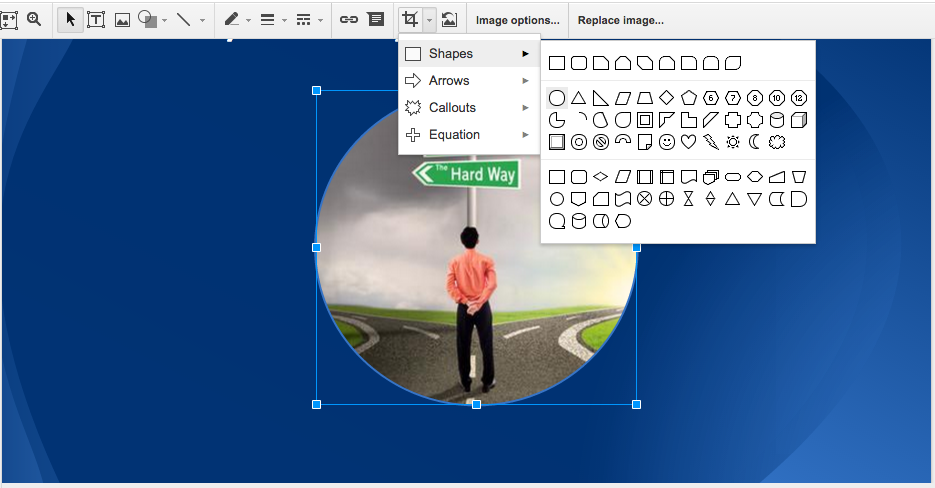
Select an image within a slide and then click on the Mask image arrow to the right of the crop tool. You can then change the image to match any of the available shapes. Start with the Rounded Rectangle shape.
Once the shape has been selected, you can use the image handles and/or the crop tool to fine-tune the shape.
Create a Translucent Text Bar or Circle On Top of an Image
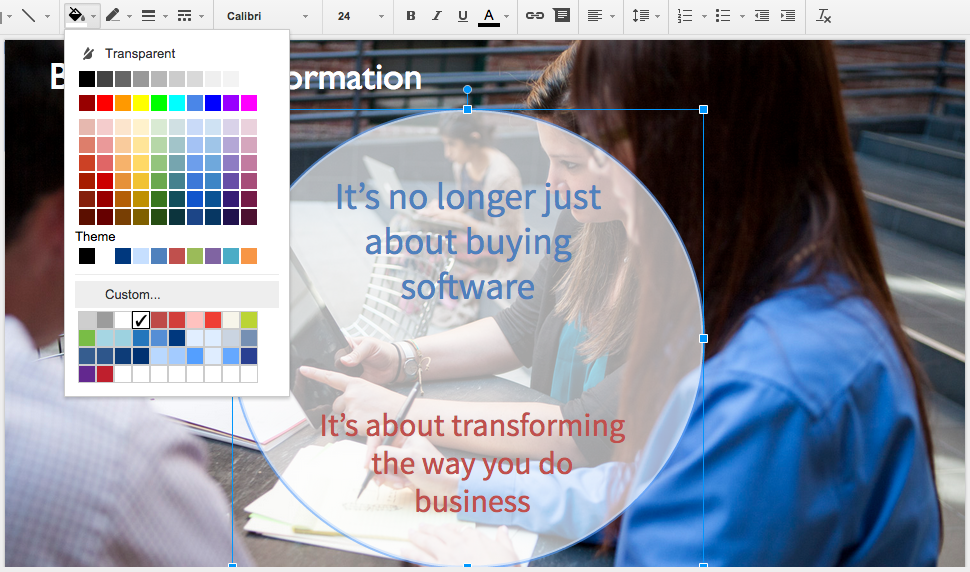
A translucent bar or circle can make overlaid text on an image appear more prominent.
Select either the text box or the shape behind the text, then click the Fill color tool. Then click Custom.
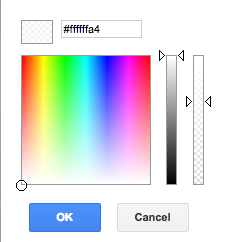
In the custom color box, select an off-white color, such as #ffffffa4, and drag the right-hand transparency slider down by about a third.
Add a Drop Shadow to Text
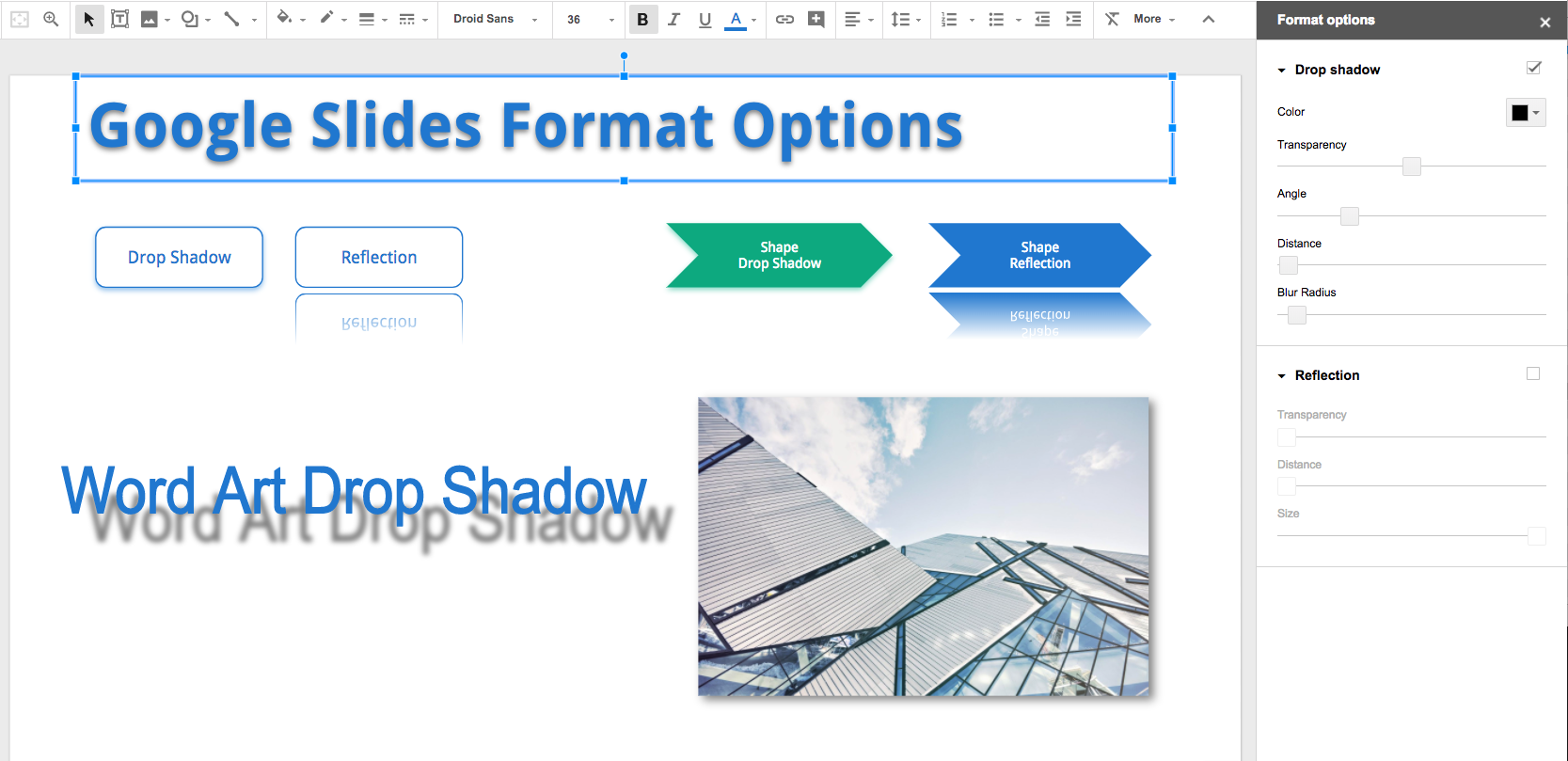
Add drop shadows to images, text, word art, and shapes. Simply select the item and then choose Format Options.
Embed Google Slides in Website Pages or Posts
Sometimes, you might want to embed a Google Slides presentation on a website page or in a blog post.
We first recommend creating a Google Drive folder named ‘Published to the Web’ and moving your presentation into it.
You’ll know that any Slides presentations in this folder are live documents and that any edits will be reflected for the public, too. Here’s an example of an embedded Slides presentation:
WordPress.com has published the steps for embedding a Google Slides presentation (scroll down to the Slides section) in a WordPress post. Note that you’ll want to change the width and height in the iframe code to be the correct dimensions for your blog. We use width=”960″ height=”425″ for the above embed.
Note also that Publish to the Web (for embedding) and Link sharing are two different actions in Google Workspace. If you want people to be able to view the slides in a browser tab by clicking on the Google Slides logo, make sure to set the Link sharing to On – Anyone with the Link.
Google Slides has an option to disable downloading, printing, and copying of any Google Drive file.
Upload Your Stock Images to a Google Drive Folder For Shared Access
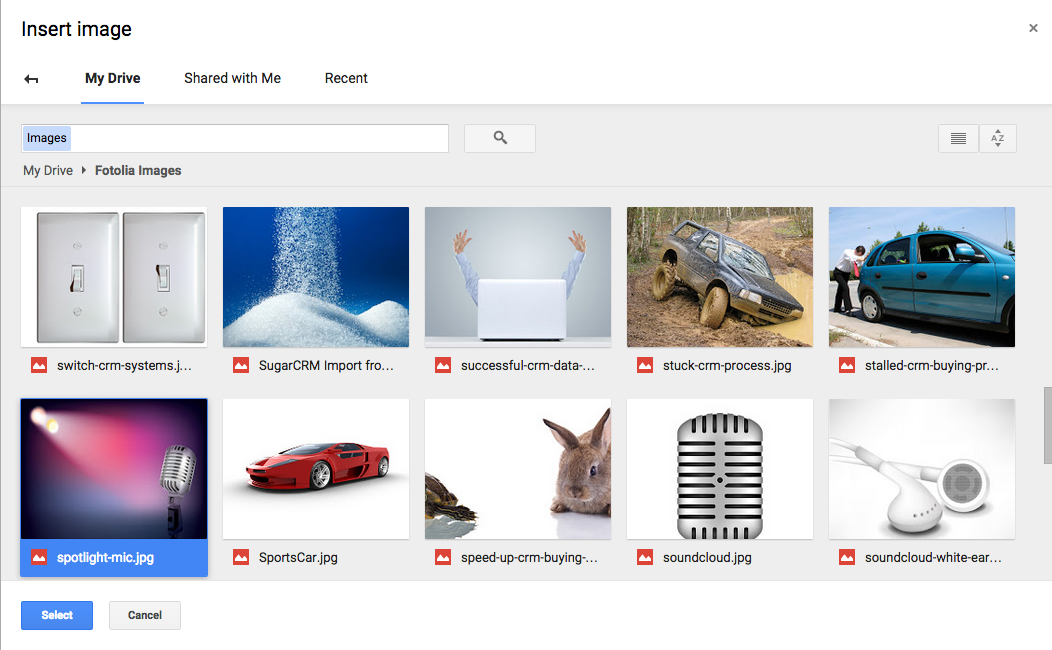
If you want others within your organization to easily access your stock images inventory for inserting into their Slides presentations, you can add the images to a Google Drive folder and then share that folder with others in your organization.
Select Insert > Image from the menus to insert images from a folder — or click the Image icon. Then click on Google Drive.

Navigate to the shared folder that contains the stock images, click on an image, and then click the Select button.
Google Workspace users can generate Nano Banana images inside a Slides presentation.
Present Your Google Slides with AirPlay or Chromecast
You can present your slides from an iPhone/iPad via AirPlay, or from an Android device via Chromecast.
If you are in a presentation venue with a TV connected to a Chromecast or Apple TV, you can present without a computer or a physical connection to the display.
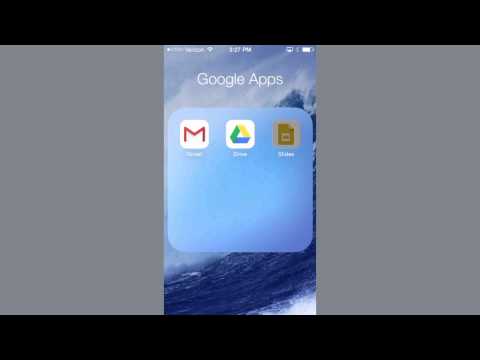
Here’s a video showing how to use the Google Slides app with AirPlay on an iPhone to cast to a TV. The process for casting with Chromecast is similar.
Bonus Tips:
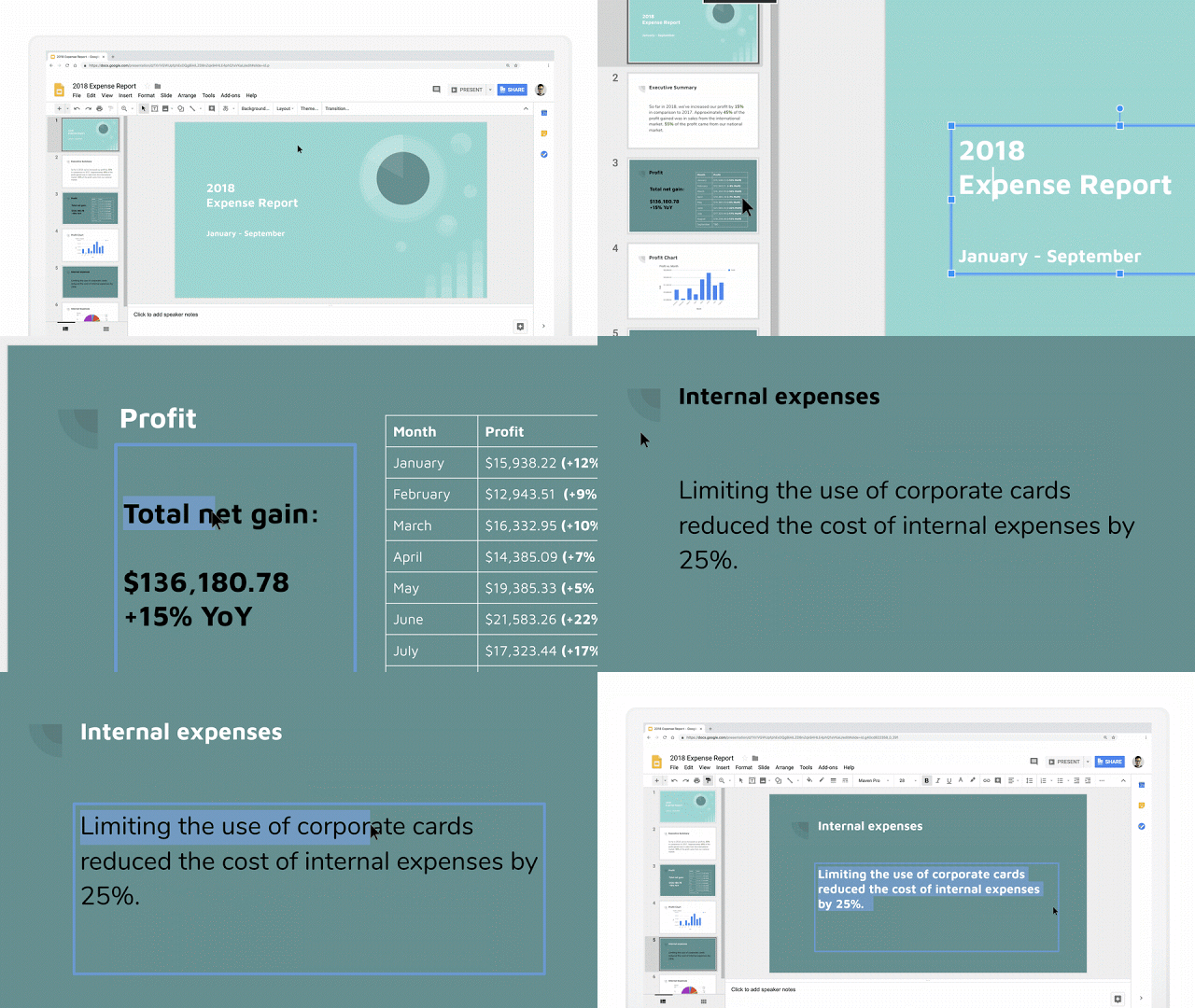
1. You can copy formatting from one object to multiple objects in Slides.
2. In November 2023, Google introduced the ability to add GIFs and stickers in Google Slides by selecting Insert > Image > GIFs and stickers from the menus.
Frequently Asked Questions
A Google Slides presentation can be downloaded as Microsoft PowerPoint (.pptx). A presentation can also be downloaded as a PDF, ODP, or plain text file. The plain text file includes text on the slide and in speaker notes.
The standard rectangular shape of an image can be changed to various shapes, including a circle. This is done by selecting the image and then selecting the Mask option from the toolbar. The Mask option is the down arrow to the right of the Crop icon.
A video can be added to any slide by clicking on the Insert menu and selecting Video. YouTube videos can be added. So can video-formatted files that have been uploaded to Google Drive.
A range of cells can be copied from a Google Sheet and then pasted into a slide as a table. The table can be linked to the spreadsheet range. When one or more cells are updated in the range, an Update button will appear on the slide. Any Google Sheets chart can be added to a slide in Google Slides.