

Google Docs is Google’s free, cloud-based word processor. Instead of installing software and saving files to your hard drive, you create and edit documents in a browser or mobile app, and every keystroke is saved automatically to Google Drive. Because the document lives in the cloud rather than on one person’s desktop, several people can open and edit the same file at the same time.
That one architectural difference — cloud storage instead of local files — is what drives almost everything else Docs can do. Below is a plain-English tour of how it actually works, from sharing and version history to offline mode and the newer AI features.
Google Docs at a Glance
- Cost: Free with any Google account. Also included in every paid Google Workspace plan.
- Where files live: Google Drive. Docs files don’t count against your Drive storage quota.
- Saving: Automatic. There is no Save button.
- Works on: Any modern browser, plus iOS and Android apps.
- Offline: Yes, with setup in Chrome or Edge.
- Word compatibility: Opens, edits, and exports .docx files.
What Is Google Docs?
Google Docs is one of the productivity applications included with both free consumer Gmail and paid Google Workspace. Its siblings are Google Sheets (spreadsheets), Google Slides (presentations), and Google Forms.
Docs is a cloud-based word processor, meaning no desktop software is required to create and edit documents. Documents are stored on Google Drive, the cloud storage included with Gmail and Google Workspace.
Technically, files are stored in pieces across different Google data centers. That redundancy is why a hard drive failure on your laptop has no effect on your documents.
Docs has all the core capabilities found in traditional word processors — styles, headers and footers, page numbers, tables, footnotes, tables of contents, and spelling and grammar checks. It also has a set of capabilities that only make sense because the document is stored on a cloud drive. So, how does Google Docs work in practice? Here are the capabilities that matter most.
Is Google Docs Free?
Yes. Anyone with a Google account can use Google Docs at no cost, and a Google account can even be created without a Gmail address.
Paid Google Workspace plans don’t unlock a different word processor. What they add is business infrastructure around it: a custom domain, far more Drive storage, admin controls, data retention and eDiscovery through Google Vault, enhanced security settings, and support. Some of the newer AI features are also limited to specific paid tiers, which is covered further down.
How Saving Works: There Is No Save Button
This is the first thing that surprises people moving over from Microsoft Word. Google Docs saves continuously as you type. The menu bar shows a status such as “Saving…” or “All changes saved in Drive.”
Because saving is constant rather than deliberate, Docs handles “undo” at the document level instead, which is what version history is for.
Version History: Every Change Is Recoverable
Docs keeps a running record of edits. Open File > Version history > See version history and you get a timeline of revisions in the right-hand panel, color-coded by author.
From there you can:
- See exactly who changed what, and when
- Restore the document to any earlier point
- Copy an old version into a brand-new document, leaving the current one untouched
- Name a version — “Draft v1,” “Sent to client,” “Board approved” — so it’s easy to find later among dozens of timestamps
For anyone who has ever emailed around files called proposal-final-v3-REALfinal.docx, this single feature is often the reason to switch.
How Sharing a Google Doc Works
A document can be entirely private to its creator, who is also the initial owner (ownership can be transferred within an organization).
A document can be shared with one person, a group, or everyone in the world. When shared with everyone, the default setting is View Only (see example below).
Sharing can also have an expiration date. For example, the document owner can use this to set a deadline for edits to a document they created.
Google Workspace users can share with other Google Workspace users within and outside of their organization. A Google Workspace user can share a Google Doc with a consumer Gmail user and vice versa. A Google Doc can even be shared with someone who has a Google account but no Gmail.
The Three Permission Levels
| Permission | What the person can do | Typical use |
|---|---|---|
| Viewer | Read only. No edits, no comments. | Published policies, read-only reference material |
| Commenter | Read and leave comments or suggestions, but not change the text directly. | Client review, legal review, feedback rounds |
| Editor | Full editing, plus re-sharing unless the owner restricts it. | Co-authoring with a team |
Owners can also switch off the ability for viewers and commenters to download, print, or copy the document — useful, though not a substitute for real information rights management.
Work Collaboratively With Other Users
One or more people can be added to a document as collaborators. The document owner can give a collaborator full edit permissions, comment-only permissions, or view-only permissions.
When several people have the file open, each person’s cursor appears in a different color with their name attached, and text appears as they type it. Nobody has to close the file so someone else can work on it, and there is no such thing as a checked-out or locked document.
The owner and collaborators (except view-only collaborators) can make general comments. They can also direct or assign comments to another collaborator as a task. The latter is done by prepending the collaborator’s email address with a “+” sign.
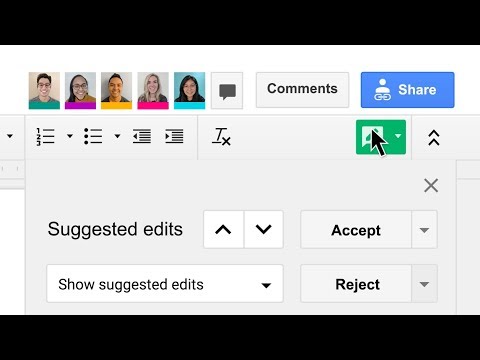
Editors can also switch into Suggesting mode, which turns their edits into proposed changes the owner can accept or reject one at a time — the closest equivalent to Word’s tracked changes.
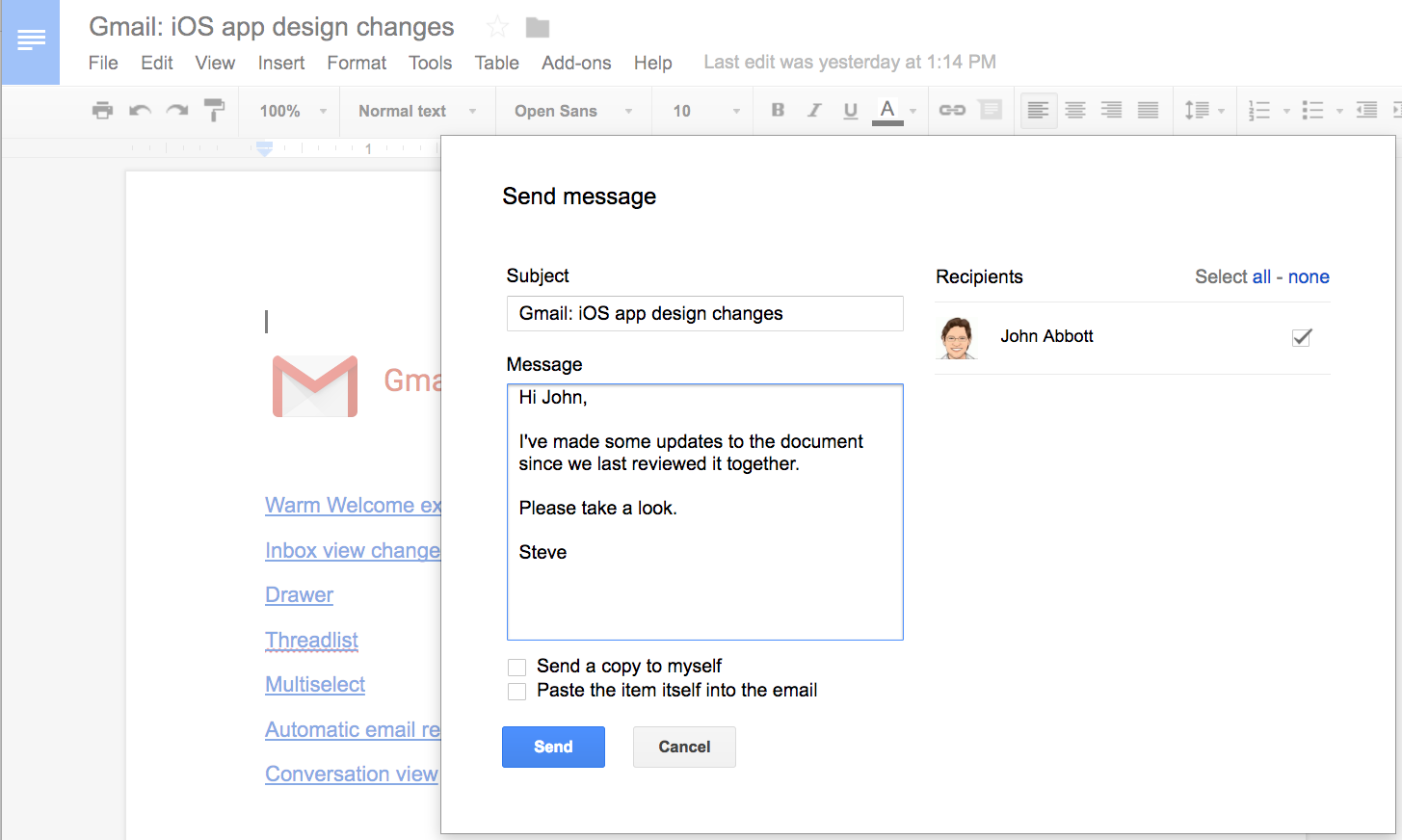
Any collaborator can email any other collaborator(s) from within the document.
Does Google Docs Work Offline?
Yes, but it has to be turned on ahead of time. Offline access requires Chrome or Microsoft Edge, and you enable it in Google Drive’s settings. Individual files can then be marked “Available offline,” and recently opened documents are generally cached automatically.
Edits you make on a plane or during an outage are stored locally in the browser and sync to Drive the next time you connect. A few things don’t survive the trip:
- Real-time collaboration — you won’t see anyone else’s cursor
- Comments and suggestions that trigger email notifications to reviewers
- Most add-ons and anything that needs a live Google service, including the AI features
One caution worth knowing: clearing your browser cache before offline edits have synced can discard that work. Reconnect and confirm the sync finished before wiping anything.
Google Docs vs. Microsoft Word
The two are more interchangeable than they used to be. Docs opens and edits .docx files directly and exports back to .docx, and Word has its own web version. The differences that still matter:
| Google Docs | Microsoft Word | |
|---|---|---|
| Primary home | Browser, cloud-first | Desktop app, with a web version |
| Cost of entry | Free with a Google account | Paid, via Microsoft 365 (limited free web tier) |
| Real-time co-editing | Built in from the start | Supported, best when files are on OneDrive or SharePoint |
| Offline use | Requires setup, browser-based | Native, works by default |
| Heavy formatting and layout | Capable, but lighter | Deeper typographic and layout control |
| Long, complex documents | Can slow down on very large files | Stronger with book-length documents |
A practical rule: Docs wins where multiple people touch a document, Word wins where one person needs precise control over a complicated one.
Insert Images
There are at least seven ways to add an image to a document, most of which can be done without leaving the document.
- Upload an image from a local drive
- Take a snapshot with a built-in computer camera or with a camera connected to the computer
- Paste in the URL of an image from somewhere on the web
- Select an image from “Your Albums” (these can be images that are automatically synced from a mobile phone)
- Insert any image that is in Google Drive
- Search the web for images (consider usage rights if the document is shared with the world)
- Copy/paste an image from another Google Workspace Doc or Slides presentation. An image can flow through the local clipboard or through the provided Web clipboard.

Embed Other Google Workspace Components in a Document
A Google Sheets chart can be embedded in a document. When the spreadsheet data behind that chart changes, an Update button will appear in the embedded chart within a Google Doc. Clicking that button refreshes the embedded chart with the current data.
A range of cells from a Sheet can be copied and pasted into a Doc with the same refresh capabilities as charts.
Inserting a Drawing into a document allows pasting multiple images into a single frame in a Google Doc.
An individual slide from a Google Slides presentation can be inserted into a Doc and optionally linked back to the slide.
This is a genuine advantage of everything living in one cloud: a quarterly report can pull live numbers rather than a screenshot someone has to remember to update.
Insert Smart Chips
Smart Chips turn a document from static text into something closer to a lightweight app. Type “@” anywhere in a Doc to bring up the menu. Options currently include
- Date
- Dropdown
- Stopwatch
- Timer
- Task
- Variable
- Voting chips
- Third-party resources
People, files, and calendar events can also be added.
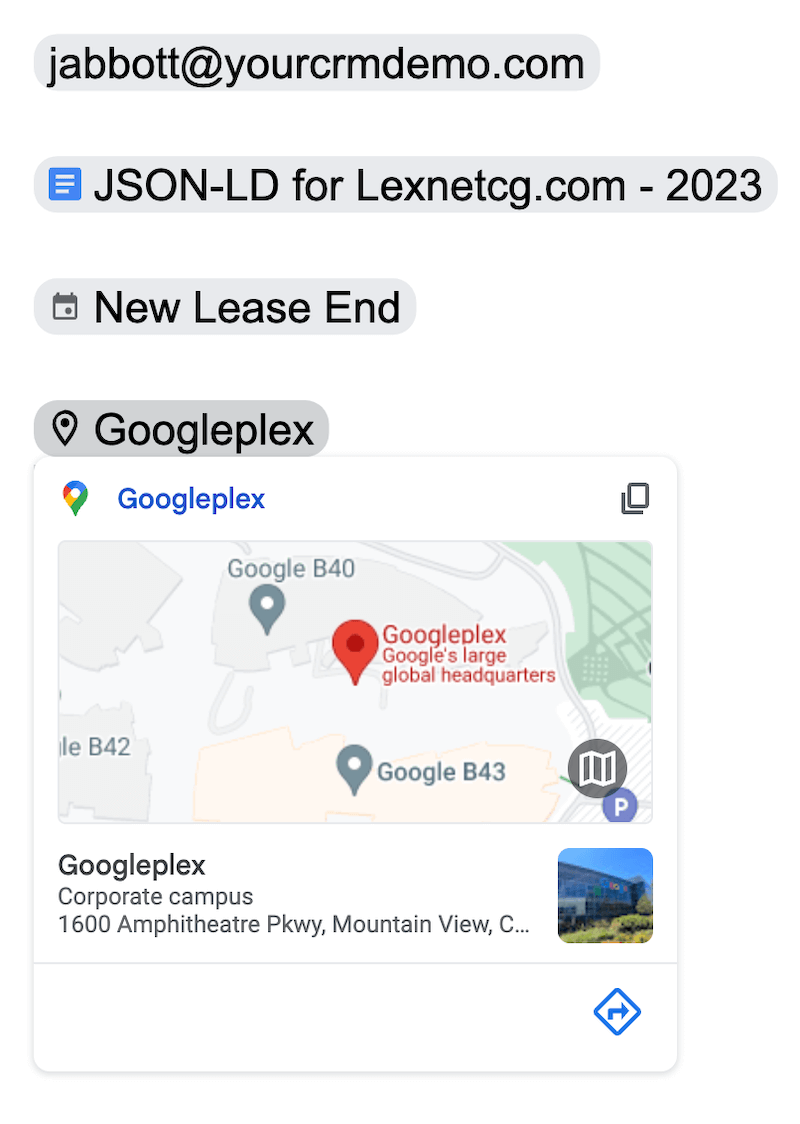
Unlike simple links, Smart Chips stand out visually and display a preview when hovered over. A person chip shows contact details and a shortcut to email them; a file chip previews the document without opening it.
Building Blocks
This feature lets you add functional tables with one click. Tables are pre-populated with dropdown lists that you can easily edit. Tables include
- Product roadmap
- Review tracker
- Project assets
- Launch content tracker
You can also use an email building block to draft an email in a Doc and then send it to Gmail, or a meeting notes block that pulls in a calendar event’s attendees and attachments automatically.
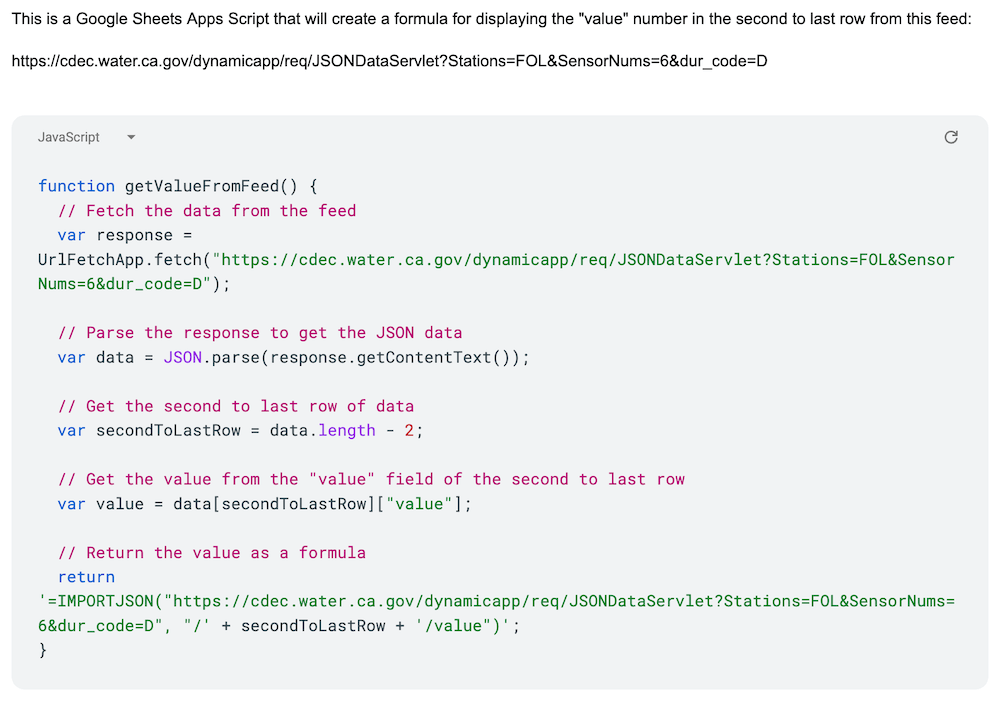
Docs also supports code blocks, displaying formatted code for languages such as C, Java, JavaScript, and Python.
How AI Works in Google Docs
The biggest change to how Google Docs works in the last couple of years has nothing to do with word processing. Gemini, Google’s AI, is now built into the Docs editor as a side panel and a prompt bar at the bottom of the screen.
In March 2026, Google rebuilt that experience around a few things:
- Generating a first draft. Describe what you need and Gemini produces a formatted document, drawing on your own Gmail messages, Drive files, and Chat history along with the web — so a request like “draft a newsletter from the January meeting minutes” pulls from the actual files.
- Editing what’s already there. Highlight a section, or the whole document, and ask for a different tone, a tighter version, or a summary.
- Matching your style. Tools that mirror the writing style and formatting of documents you’ve already written.
- Standing instructions. Guidance Gemini remembers across documents, so you aren’t restating house style every time.
An important caveat on availability: these features are tied to specific plans rather than being universal. They began rolling out to Google AI Pro and Ultra subscribers and to certain business customers, with language support expanding through 2026. If you’re on a free Google account, expect to see a narrower set of AI tools than the announcements describe. Workspace administrators also control whether smart features are enabled at all.
Listening To Docs
Docs users can listen to documents by selecting Tools > Audio > Listen to this tab from the menus. A user can select from a variety of voice options.
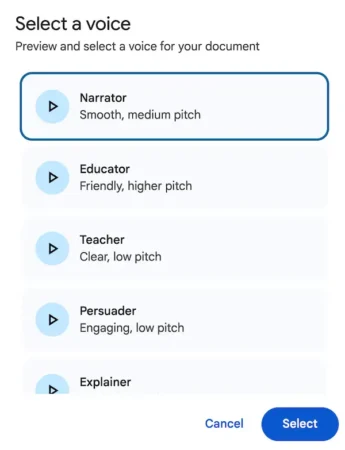
Google has since gone further, adding podcast-style audio overviews that turn a document into a spoken conversation between two AI voices rather than a straight read-aloud — the same idea as NotebookLM’s Audio Overviews. At I/O in May 2026, Google also announced conversational voice features for Docs, so you can talk through a document instead of typing at it.
Text-to-speech is also a straightforward accessibility win, and it doubles as a proofreading trick: errors you skim past on screen are hard to miss when you hear them.
Google Docs on Phones and Tablets
The free Google Docs apps for iOS and Android are full editors, not just viewers. They handle real-time collaboration, comments, version history, offline files, and opening Microsoft Word documents. Gemini features have been arriving on mobile too, starting with Android.
Because the file itself lives in Drive, there’s no syncing to think about — the document you left open on a laptop is the same document on the phone.
Save Documents to Your Local Drive
A Google Doc can be saved to a local drive in the following formats. Once saved, it can be edited (except for PDF and EPUB formats) and emailed or uploaded to another location.
- Microsoft Word (.docx)
- OpenDocument Format (.odt)
- Rich Text Format (.rtf)
- PDF Document (.pdf)
- Plain Text (.txt)
- Web Page (.html, zipped)
- EPUB Publication (.epub)
The document can also be directly emailed to anyone as an attachment from within the document. One option is to include the document (along with any images) in the body of the email.
This matters for anyone worried about lock-in. Your content isn’t trapped in Google’s format — a Doc can be exported to an open or industry-standard file any time.
Google Docs FAQ
Do I need Gmail to use Google Docs?
No. You need a Google account, which can be created with an existing email address from any provider. Docs can be shared with those accounts too.
Can Google Docs open Microsoft Word files?
Yes. You can edit a .docx file in Docs while keeping it in Word format, or convert it to a Google Doc. Complex layouts, macros, and unusual fonts are where fidelity tends to slip.
Does Google Docs count against my Drive storage?
Files created in Google Docs format don’t consume storage quota. Uploaded files, including .docx files you haven’t converted, do.
How many people can edit a Google Doc at once?
Google supports up to 100 people editing simultaneously. Beyond that, additional users can still open the file in view-only mode.
Can I recover a deleted Google Doc?
Deleted files sit in Drive’s trash for 30 days before permanent removal. Workspace administrators have a further window to restore files deleted by users in their organization.
Is Google Docs secure enough for business use?
Data is encrypted in transit and at rest, and Workspace plans add admin controls, two-step verification enforcement, sharing restrictions, and audit logging. The practical risk in most organizations isn’t Google’s infrastructure — it’s a link shared more widely than intended, which is a configuration and training problem.
Wrapping Up
Google Docs is a convenient and effective tool for creating and sharing documents online, and the reason it works the way it does comes back to one design decision: the document lives in the cloud, not on a hard drive.
Real-time collaboration, access from any device, recoverable version history, and now AI drafting all follow from that. Whether you are a student, a business professional, or just looking for a way to stay organized, Google Docs is worth giving a try.