

Last updated: October 14, 2026
Google Docs is Google’s free, cloud-based word processor. Instead of installing software and saving files to your hard drive, you create and edit documents in a browser or mobile app, and Google Drive automatically saves every keystroke. Because the document lives in the cloud rather than on one person’s desktop, several people can open and edit the same file at the same time.
That one architectural difference — cloud storage instead of local files — is what drives almost everything else Docs can do. Below is a plain-English tour of how it actually works, from sharing and version history to offline mode, tabs, and the Gemini AI features that now sit inside the editor.
Google Docs at a Glance
- Cost: Free with any Google account. Also included in every paid Google Workspace plan.
- Where files live: Google Drive.
- Saving: Automatic. There is no Save button.
- Works on: Any modern browser, plus iOS and Android apps.
- Offline: Yes, with setup in Chrome or Edge.
- Word compatibility: Opens, edits, and exports .docx files.
- AI: Gemini features on eligible paid Google Workspace and Google AI plans; not part of a free account.
What Is Google Docs?
Google Docs is one of the productivity applications included with both free consumer Gmail and paid Google Workspace. Its siblings are Google Sheets (spreadsheets), Google Slides (presentations), and Google Forms.
Docs is a cloud-based word processor, so you don’t need desktop software to create and edit documents. Google Drive stores documents; it’s the cloud storage included with Gmail and Google Workspace.
Technically, Google stores files in pieces across different data centers. That redundancy means a hard drive failure on your laptop won’t affect your documents.
Docs has all the core capabilities found in traditional word processors — styles, headers and footers, page numbers, tables, footnotes, tables of contents, and spelling and grammar checks. It also has capabilities that only make sense because the document is stored on a cloud drive. So, how does Google Docs work in practice? Here are the capabilities that matter most.
Create Your First Document
Go to docs.google.com and, under “Start a new document,” click Blank — or pick one of the templates shown alongside it. A shortcut worth bookmarking: typing docs.google.com/create into the address bar opens a new blank document immediately (Google’s getting-started guide).
Give the document a name in the top-left corner and start typing. That’s it — there’s no file location to choose and no format to pick, because the document is already in your Drive. New, empty documents also show a row of buttons across the top for inserting building blocks such as meeting notes or an email draft (more on those below).
Is Google Docs Free?
Yes. Anyone with a Google account can use Google Docs at no cost, and a Google account can even be created without a Gmail address.
Paid Google Workspace plans don’t unlock a different word processor. They add business infrastructure around it: a custom domain, far more Drive storage, admin controls, data retention and eDiscovery through Google Vault, enhanced security settings, and support. Some of the newer AI features are also limited to specific paid tiers, which is covered further down.
How Saving Works: There Is No Save Button
This is the first thing that surprises people moving over from Microsoft Word. Google Docs saves continuously as you type. The menu bar shows a status such as “Saving…” or “All changes saved in Drive.”
Because saving is constant rather than deliberate, Docs handles “undo” at the document level instead, which is what version history is for.
How Real-Time Editing Works Behind the Scenes
The “several people typing at once” trick deserves a plain-English explanation, because it’s the part of Docs that most people find a little magical.
A Google Doc isn’t stored as a single block of text that gets overwritten each time someone saves. Google has described it as a running log of small changes — insert these characters here, delete those there, make this word bold. Every keystroke you make becomes one of those changes and is sent to Google’s servers.
The hard part is what happens when two people change the same paragraph at the same moment. Docs uses a technique called operational transformation: when your change arrives after someone else’s, it’s adjusted to account for theirs. If a colleague inserted a sentence above the word you’re deleting, your delete is shifted down so it still removes the right word. Everyone’s copy ends up identical, and nobody’s edit is silently thrown away.
That same log of changes is why version history can show who changed what and when — it’s a by-product of how the document is stored, not a separate backup feature.
Version History: Every Change Is Recoverable
Docs keeps a running record of edits. Open File > Version history > See version history, and you get a timeline of revisions in the right-hand panel, color-coded by author.
From there you can:
- See exactly who changed what, and when
- Restore the document to any earlier point
- Copy an old version into a brand-new document, leaving the current one untouched
- Name a version — “Draft v1,” “Sent to client,” “Board approved” — so it’s easy to find later among dozens of timestamps
For anyone who has ever emailed around files called proposal-final-v3-REALfinal.docx, this single feature is often the reason to switch.
How Sharing a Google Doc Works
A document starts out private to its creator, who is also the initial owner (ownership can be transferred within an organization).
You can share a document with one person, a Google group, or anyone with the link. For each person you choose whether they’re a Viewer, Commenter, or Editor, and a single file can be shared with up to 600 individual email addresses (Google Help).
On eligible work or school accounts, sharing can also have an expiration date — useful for giving a contractor or client temporary access. Personal Google accounts don’t have this option.
Google Workspace users can share with other Google Workspace users within and outside of their organization. A Google Workspace user can share a Google Doc with a consumer Gmail user and vice versa. You can even share a Google Doc with someone who has a Google account but no Gmail.
The Three Permission Levels
| Permission | What the person can do | Typical use |
|---|---|---|
| Viewer | Read-only. No edits, no comments. | Published policies, read-only reference material |
| Commenter | Read and leave comments or suggestions, but not change the text directly. | Client review, legal review, feedback rounds |
| Editor | Full editing, plus re-sharing unless the owner restricts it. | Co-authoring with a team |
Owners can also disable the ability for viewers and commenters to download, print, or copy the document—useful, though not a substitute for real information rights management.
Work Collaboratively With Other Users
When several people have the file open, each person’s cursor appears in a different color with their name attached, and text appears as they type it. No one has to close the file for someone else to work on it, and there is no such thing as a checked-out or locked document.
The owner and collaborators (except view-only collaborators) can add comments. To turn a comment into a task, mention a collaborator with “@” or “+” followed by their name or email address and assign it to them; they’ll get a notification and the item shows as assigned to them.
Editors can also switch to Suggesting mode, which turns their edits into proposed changes the owner can accept or reject one at a time—the closest equivalent to Word’s tracked changes.
Any collaborator can also email other collaborators directly from the document (File > Email > Email collaborators).
Organize Long Documents With Tabs
Since late 2024, Docs has supported document tabs — available to Workspace customers and personal Google accounts alike. Instead of one endless scroll, a document can be split into tabs listed in the left-hand panel, and each tab can have its own subtabs.
A campaign brief might have separate tabs for budget, goals, and creative; a sales playbook might have a tab per territory. You can add an emoji to each tab, and you can copy a link to one specific tab, so a reviewer lands exactly where you want them rather than on page one.
Does Google Docs Work Offline?
Yes, but you have to turn it on ahead of time. Offline access requires Chrome or Microsoft Edge, and you enable it in Google Drive’s settings. You can then mark individual files as “Available offline,” and recently opened documents are usually cached automatically.
Edits you make on a plane or during an outage are stored locally in the browser and sync to Drive the next time you connect. A few things don’t survive the trip:
- Real-time collaboration — you won’t see anyone else’s cursor
- Comments and suggestions that trigger email notifications to reviewers
- Most add-ons and anything that needs a live Google service, including the AI features
One caution worth knowing: clearing your browser cache before offline edits have synced can discard that work. Reconnect and confirm the sync finished before wiping anything.
Google Docs vs. Microsoft Word
The two are more interchangeable than they used to be. Docs opens and edits .docx files directly and exports back to .docx, and Word has its own web version. The differences that still matter:
| Google Docs | Microsoft Word | |
|---|---|---|
| Primary home | Browser, cloud-first | Desktop app, with a web version |
| Cost of entry | Free with a Google account | Paid, via Microsoft 365 (limited free web tier) |
| Real-time co-editing | Built in from the start | Supported, best when files are on OneDrive or SharePoint |
| Offline use | Requires setup, browser-based | Native, works by default |
| Heavy formatting and layout | Capable, but lighter | Deeper typographic and layout control |
| Long, complex documents | Can slow down on very large files | Stronger with book-length documents |
| PDFs | Import a PDF and edit it as a Doc | Opens and converts PDFs for editing |
A practical rule: Docs wins where multiple people touch a document; Word wins where one person needs precise control over a complicated one. For the wider suite comparison, see Google Workspace vs. Office 365.
Insert Images
The Insert > Image menu covers most of the ways you’d expect to add a picture without leaving the document:
- Upload from your computer
- Take a snapshot with your camera
- Paste the URL of an image on the web
- Pick a file from Google Drive or Google Photos
- Search the web for images (consider usage rights if the document is shared with the world)
You can also paste an image copied from another Doc or a Slides presentation. On eligible paid plans, Gemini can generate an image for a document from a text description (Google Help).
Embed Other Google Workspace Components in a Document
You can embed a Google Sheets chart in a document. When the spreadsheet data behind the chart changes, an Update button appears in the embedded chart in a Google Doc. Clicking that button refreshes the embedded chart with the current data.
You can copy and paste a range of cells from a Sheet into a Doc with the same refresh capabilities as charts.
Inserting a Drawing into a document lets you paste multiple images into a single frame in a Google Doc.
You can insert an individual slide from a Google Slides presentation into a Doc and optionally link back to the slide.
This is a genuine advantage of everything living in one cloud: a quarterly report can pull live numbers rather than a screenshot someone has to remember to update.
Insert Smart Chips
Smart chips turn a document from static text into something closer to a lightweight app. Type “@” anywhere in a Doc — or use Insert > Smart chips — to bring up the menu. According to Google’s help page, chips can represent:
- People with Gmail or Workspace email addresses
- Other Docs, Sheets, or Slides files
- Dates and Google Calendar events (you can even join the event’s video meeting from the chip)
- Places and map directions
- Dropdowns with preset or custom options
- Placeholder chips a collaborator fills in
- Time trackers such as a stopwatch or timer
- Variables (on eligible work or school accounts) — change the value once and it updates everywhere it’s used
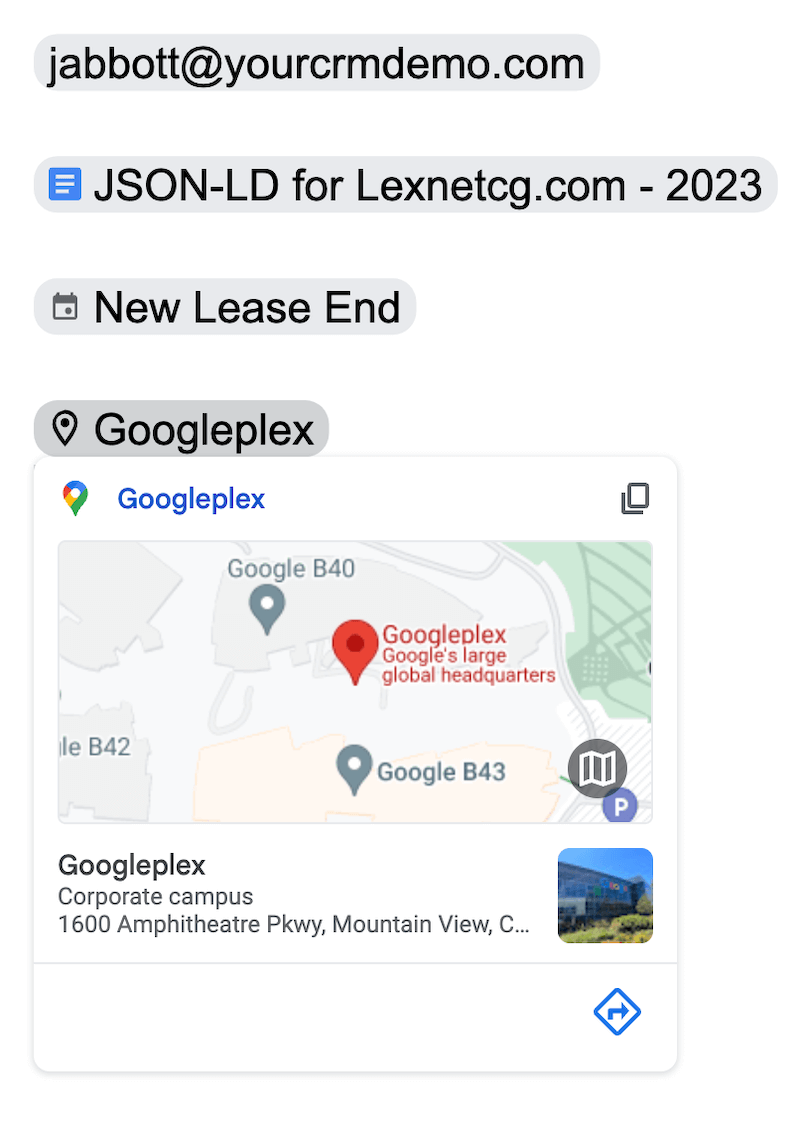
Unlike simple links, smart chips stand out visually and display a preview when you hover over them. A person chip shows contact details and a shortcut to email them; a file chip previews the document without opening it. We cover them in more depth in our smart chips guide.
Building Blocks
Building blocks insert ready-made structures with one click. Go to Insert > Building blocks > View more, or type “@” and choose See all building blocks. Google groups them by purpose:
- Project management — tables such as a product roadmap or review tracker, pre-filled with dropdown status chips. A task tracker block can sync its tasks with Google Tasks (Workspace and Workspace Individual subscribers).
- Communication — an email draft you write in the Doc, then open in Gmail to send.
- Meetings — meeting notes attached to a Calendar event, or a draft Calendar event.
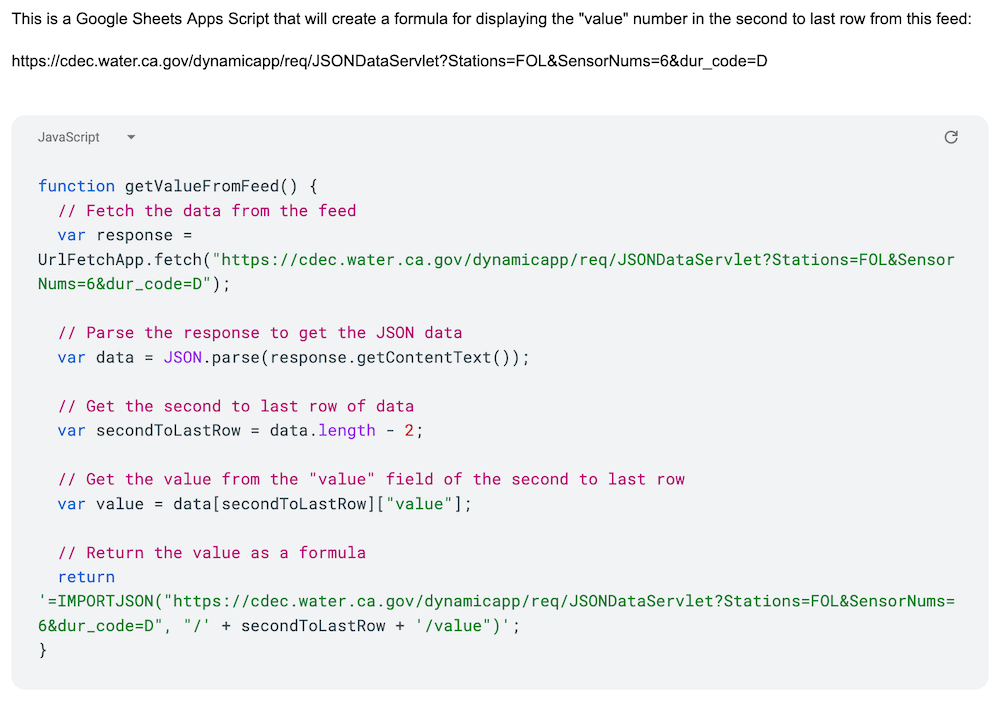
Docs also has code blocks for displaying formatted code, and eligible work or school accounts can save any section as a custom building block to reuse later.
How AI Works in Google Docs
The biggest change to how Google Docs works in the last couple of years has nothing to do with word processing. Gemini, Google’s AI, is now built into the Docs editor as a side panel and a prompt bar at the bottom of the screen.
Google rebuilt that experience in 2026. It launched in beta for Google AI Pro and Ultra subscribers on March 10, then reached Workspace business customers from April 22 (Rapid Release domains) and May 6 (Scheduled Release domains). The main pieces:
- Help me create. Describe what you need and Gemini produces a fully formatted first draft, drawing on your Drive files, Gmail, Chat, and the web.
- Help me write. Prompt Gemini from the bottom bar or side panel to edit across the whole document, or select text to focus on one section. Quick actions such as Rephrase, Shorten, Elaborate, Bulletize, and Summarize are a click away. Gemini’s suggested edits are visible only to you until you approve them.
- Match writing style. Smooths out a document several people have written so the tone and voice are consistent throughout.
- Match doc format. Mirrors the formatting (fonts, colors) and structure (headings, table columns) of a source document — handy for filling in a template you already like.
The features launched in English first. For a broader look at the AI across Gmail, Sheets, Meet, and the rest of the suite, see our Gemini for Google Workspace overview.
Which AI Features Come With Which Plan?
This is the part announcements tend to gloss over. A free Google account gets the full word processor, but Gemini features in Docs require an eligible paid plan (Google Help):
| Feature | Free Google account | Google Workspace (business) | Google AI Pro / Ultra (personal) |
|---|---|---|---|
| Core Docs: editing, sharing, version history, tabs, smart chips | Yes | Yes | Yes |
| Help me create, Help me write, Match writing style, Match doc format | No | Eligible editions (since April–May 2026) | Yes (since March 2026) |
| Listen to this tab / audio summaries | No | Business Standard and Plus, Enterprise Standard and Plus | Yes |
| Docs Live (voice) | No | Announced as coming soon | Yes, on Android and iOS |
| eSignature | No | Business Standard and Plus, Enterprise plans, Education Plus | Via a Workspace Individual plan |
Workspace administrators can also turn some of these features off for their organization, so what you see at work depends on your admin as well as your plan.
Listening To Docs
On eligible paid plans, Docs can read a document aloud. Choose Tools > Audio > Listen to this tab, and a player appears where you can change the voice and the playback speed. Authors can also add an audio button through Insert > Audio buttons, so readers can play the tab with a single click. When it launched in August 2025, the feature was English-only and desktop-only.
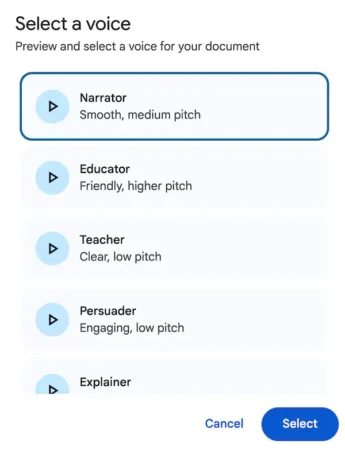
In February 2026, Google added audio summaries: Tools > Audio > Listen to document summary gives you a short spoken overview — typically under a few minutes — that can cover multiple tabs. You can choose a voice persona such as narrator, coach, or persuader. It’s a quick way to catch up on a long report before a meeting.
Text-to-speech is also a straightforward accessibility win, and it doubles as a proofreading trick: errors you skim past on screen are hard to miss when you hear them.
Talk to Docs With Docs Live
Google previewed Docs Live at I/O in May 2026 and launched it in September. Instead of typing a careful prompt, you talk — a rough “brain dump” of what you want — and Gemini organizes your thoughts into a structured document, pulling in details from Gmail, Drive, Chat, and the web if you allow it.
At launch, Docs Live is available to Google AI Pro and Ultra subscribers on the Android and iOS apps, in English. Google says Workspace business customers are next.
eSignatures and Markdown
Two smaller features are worth knowing about. With eSignature (Tools > eSignature), you drag signature, initials, name, and date fields onto a document and send it to up to 10 signers; Docs generates a locked PDF with an audit trail. It’s available on Business Standard and higher, Enterprise plans, Education Plus, and Workspace Individual, if your admin has turned it on. We walk through it in our Google Docs eSignature guide.
If you write in Markdown, Docs can detect Markdown as you type (turn it on under Tools > Preferences), paste from Markdown, and import or export .md files.
Google Docs on Phones and Tablets
The free Google Docs apps for iOS and Android are full editors, not just viewers. They handle real-time collaboration, comments, version history, offline files, and opening Microsoft Word documents. Docs Live, described above, is a mobile-first feature.
Because the file itself lives in Drive, there’s no syncing to think about — the document you left open on a laptop is the same document on the phone.
Save Documents to Your Local Drive
You can save a Google Doc to a local drive in the following formats. Once saved, you can edit it (except in PDF and EPUB formats) and email it or upload it elsewhere.
- Microsoft Word (.docx)
- OpenDocument Format (.odt)
- Rich Text Format (.rtf)
- PDF Document (.pdf)
- Plain Text (.txt)
- Web Page (.html, zipped)
- EPUB Publication (.epub)
You can also email the document directly as an attachment from within the document. You can also include the document (along with any images) in the body of the email.
This matters for anyone worried about lock-in. Your content isn’t trapped in Google’s format — a Doc can be exported to an open or industry-standard file any time.
Google Docs FAQ
Do I need Gmail to use Google Docs?
No. You need a Google account, which you can create with an existing email address from any provider. You can also share Docs with those accounts.
Can Google Docs open Microsoft Word files?
Yes. You can edit a .docx file in Docs while keeping it in Word format, or convert it to a Google Doc. Complex layouts, macros, and unusual fonts are where fidelity tends to slip.
How many people can edit a Google Doc at once?
Up to 100 people with view, comment, or edit access can work in a Doc at the same time. Beyond 100, only the owner and some editors can edit; Google suggests publishing the document to the web if more people need to view it.
Can I recover a deleted Google Doc?
Yes, for a while. Deleted files stay in Drive’s trash for 30 days and can be restored from there. In Google Workspace, an administrator can also restore files for up to 25 days after they’re removed from the trash.
Does Google Docs have AI?
Yes, on eligible plans. Gemini in Docs can draft a formatted document, edit or summarize text, match a writing style or format, read a document aloud, and generate audio summaries. These features need an eligible Google Workspace or Google AI plan; they aren’t part of a free account.
Can Google Docs edit PDFs?
Yes. You can import a PDF into Docs and edit it as a Google Doc. On eligible Workspace plans, you can also send a PDF in Drive or a Doc for eSignature.
Is Google Docs secure enough for business use?
Data is encrypted in transit and at rest, and Workspace plans add admin controls, two-step verification enforcement, sharing restrictions, and audit logging. The practical risk in most organizations isn’t Google’s infrastructure — it’s a link shared more widely than intended, which is a configuration and training problem.
Wrapping Up
Google Docs works the way it does because of one design decision: the document lives in the cloud, not on a hard drive.
Real-time collaboration, access from any device, recoverable version history, and now AI drafting all follow from that. Whether you are a student, a business professional, or just looking for a way to stay organized, Google Docs is worth giving a try.